# Installing Docker on Debian
> Docker installation and basics on Debian.
Published on 2021-10-21 | Updated on 2025-01-12 | Tags: docker
https://xsec.fr/en/gnu-linux/docker/
---
import Callout from '@shared/components/Callout.astro'
import { Collapsible } from '@shared/components/ui/collapsible'
If you configure your server directly as root, don't forget to remove `sudo` from each command.
If you set a password for the root account, the `sudo` command won't be accepted.
Connect directly as root to execute commands.
You can also reinstall your system leaving the root password empty during installation.
`sudo` will install and work properly.
## Installation of dependencies
```sh
sudo apt-get update && sudo apt-get install \
apt-transport-https \
ca-certificates \
curl \
gnupg \
lsb-release
```
## Add the official GPG key
```sh
curl -fsSL https://download.docker.com/linux/debian/gpg | sudo gpg --dearmor -o /usr/share/keyrings/docker-archive-keyring.gpg
```
## Add the stable repo
```sh
echo \
"deb [arch=$(dpkg --print-architecture) signed-by=/usr/share/keyrings/docker-archive-keyring.gpg] https://download.docker.com/linux/debian \
$(lsb_release -cs) stable" | sudo tee /etc/apt/sources.list.d/docker.list > /dev/null
```
## Install Docker Engine
```sh
sudo apt-get update && sudo apt-get install docker-ce docker-ce-cli containerd.io
```
`O` To validate the intervention requests during installation.
Verify our docker installation
```sh
sudo docker run hello-world
```
```txt title="sudo docker run hello-world"
Hello from Docker!
This message shows that your installation appears to be working correctly.
To generate this message, Docker took the following steps:
1. The Docker client contacted the Docker daemon.
2. The Docker daemon pulled the "hello-world" image from the Docker Hub.
(amd64)
3. The Docker daemon created a new container from that image which runs the
executable that produces the output you are currently reading.
4. The Docker daemon streamed that output to the Docker client, which sent it
to your terminal.
To try something more ambitious, you can run an Ubuntu container with:
$ docker run -it ubuntu bash
Share images, automate workflows, and more with a free Docker ID:
https://hub.docker.com/
For more examples and ideas, visit:
https://docs.docker.com/get-started/
```
Your installation is successful!
## Create an Apache Container
As an example, we will create an Apache container
```sh
docker run -d --name docker-apache -v /var/www/:/usr/local/apache2/htdocs/ -p 3000:80 httpd
```
Let's break down the command above:
`docker run` allows you to launch a container or install it if it doesn't exist
`-d` detaches from the container
`--name` CONTAINER_NAME
`-v` for "Volume", path on machine:container path
`-p` To specify local_port:container_port (http://MACHINE_IP:3000)
`httpd` the name of the Apache image, could be `nginx` in case of a nginx installation.
The run command will apply all options to the service installation.
## Display Docker Containers
```sh
docker ps
```
`docker ps` displays the active containers.
```sh
docker -a
```
`docker ps -a` displays all containers.
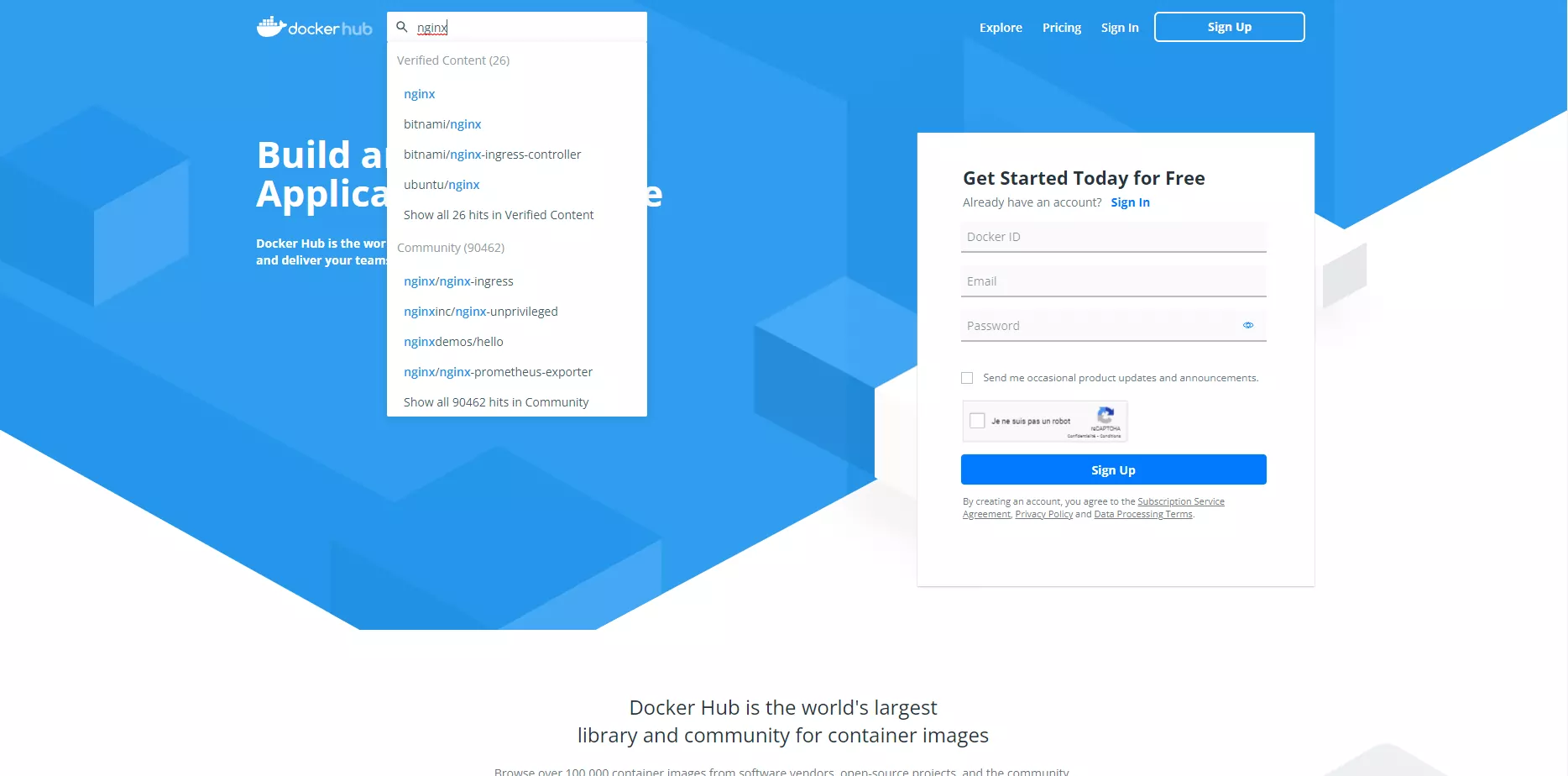
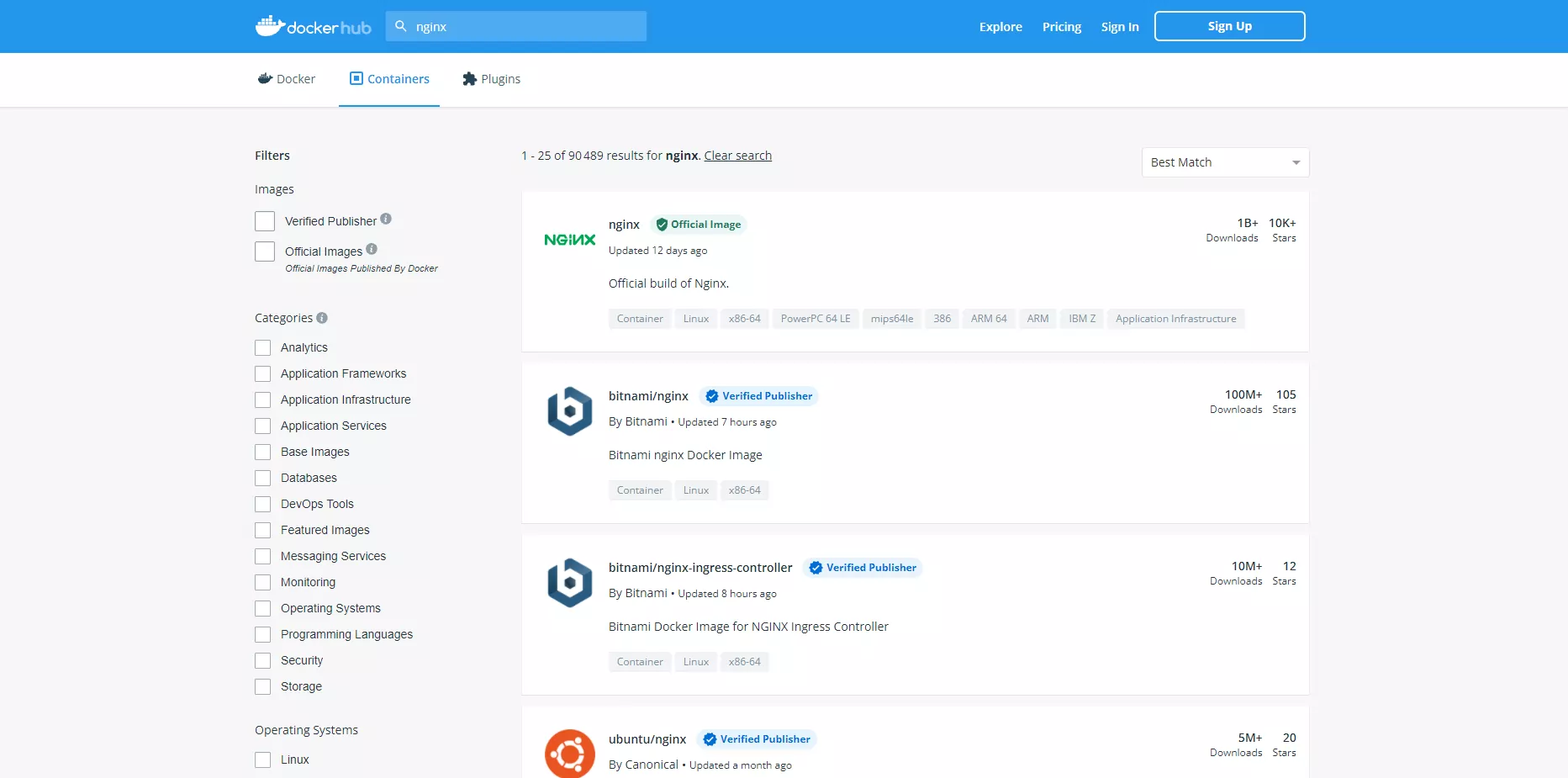
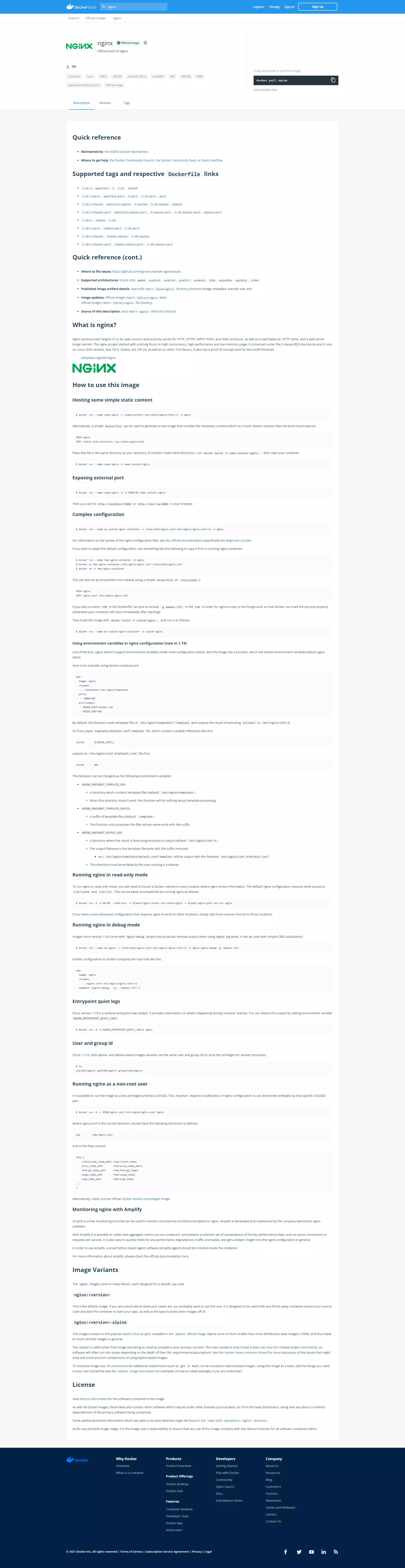
## The Docker Hub
The `Docker Hub` is like the Android play store.
It allows us to find container installation images, official or not, as well as their documentation.