# Introduction to Git & Github
> Git is a version control system that allows you to track changes in your code. Github is a platform that allows you to host your code and collaborate with others.
Published on 2022-09-05 | Updated on 2025-03-23 | Tags: git, github
https://xsec.fr/en/gnu-linux/git-github/
---
import Callout from '@shared/components/Callout.astro'
import { Tabs, Tab } from '@/components/ui/tabs'
import { Steps, Step } from '@/components/ui/steps'
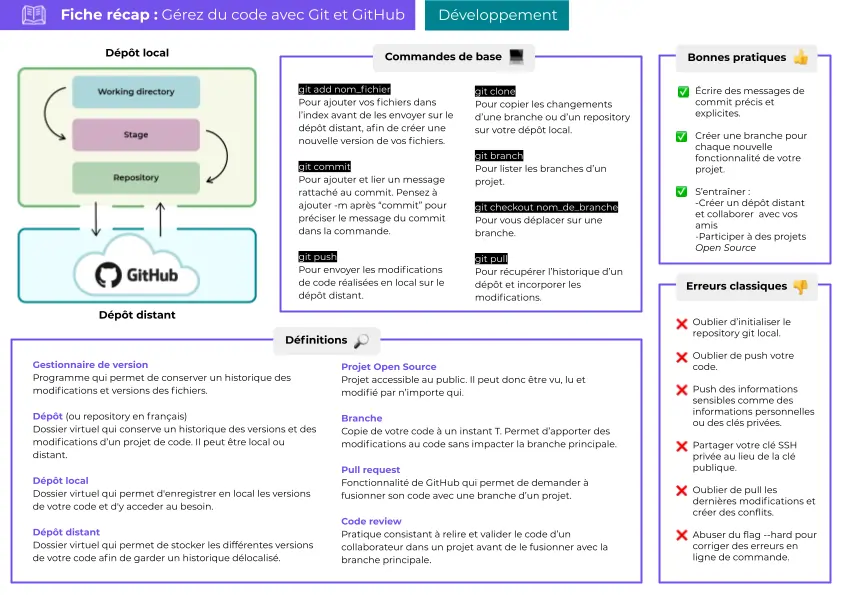
This tool has three main functions:
- Return to a previous version of your code in case of problems
- Track the evolution of your code step by step
- Work collaboratively without risking deletion of other contributors' changes
There are several alternatives to Github, the most well-known being **Gitlab** which is a **fork of Github** that adds improvements and offers the possibility of **self-hosting**. The operation remains similar.
## How it works
Git works similarly to incremental backup, where a set of folders/files will be added to the project.
Subsequently, a complete history of project changes will be available - these changes can be ignored, added, deleted or merged.
Git offers a branch system, which allows for example, to develop content on the main branch without altering it. This is because Git will have previously made a kind of secondary clone of the branch
(using the command `git checkout -b mybranch`).
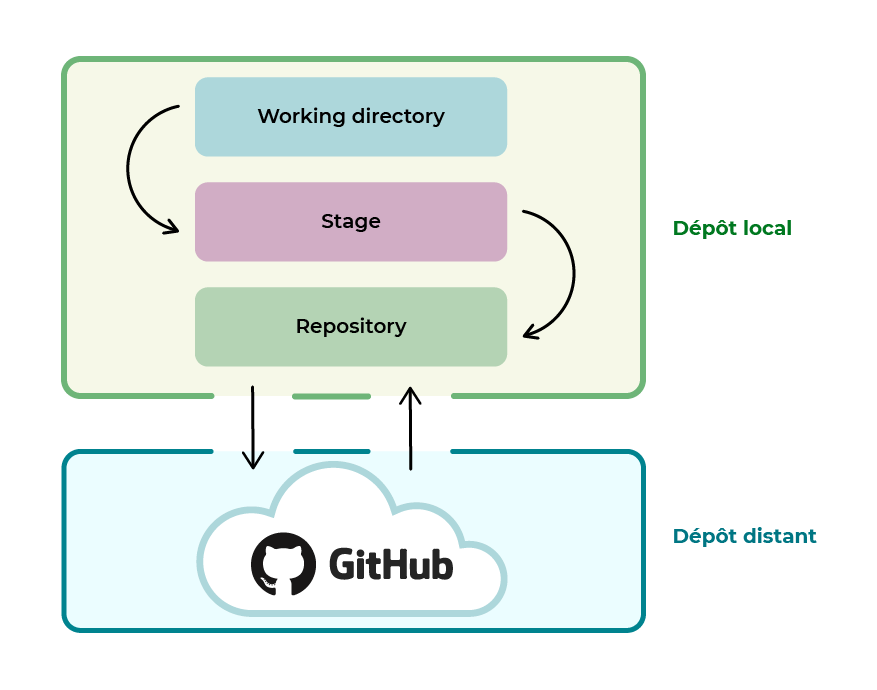
- **The Working directory** corresponds to the project folder on the machine.
- **The Stage or Index** is the intermediate stage representing all modified files that have been **"staged"**. See [how to add folders and files to the repository](#adding-foldersfiles-to-repository).
- **The repository** is the entire project with its commits.
## Local repository
- A repository is the set of folders/files that make up a Git-initiated project.
- In online documentation or professional settings, we often talk about repositories.
- The local repository is stored directly on the machine.
## Remote repository
- The remote repository is hosted on a remote server
## Initialize a repository
Go to the desired directory, for example: `cd ~/myproject`
```sh title="git init" {11}
tip: Using 'master' as the name of the initial branch. This default branch name
tip: is subject to change. To configure the initial branch name for all new
tip: repositories, and suppress this warning, run:
tip:
tip: git config --global init.defaultBranch
tip:
tip: Names commonly chosen instead of 'master' are 'main', 'trunk' and
tip: 'development'. The newly created branch can be renamed with:
tip:
tip: git branch -m
Empty Git repository initialized in /home/contact/contactit.fr/.git/
```
```sh title="git clone https://github.com/username/project/myproject.git"
Cloning into 'myproject.git'...
remote: Enumerating objects: 11779, done.
remote: Counting objects: 100% (82/82), done.
remote: Compressing objects: 100% (66/66), done.
remote: Total 11779 (delta 52), reused 33 (delta 16), pack-reused 11697
Receiving objects: 100% (11779/11779), 23.50 MiB | 11.34 MiB/s, done.
Resolving deltas: 100% (7047/7047), done.
```
The `git clone` command will directly **import the project** and its source files into a folder with its name.
- It may be necessary to update the repository following a change made by another project contributor, use the command:
```sh
git pull origin mybranch
```
**"Pull"** and **"fetch"** allow you to request a repository
### Verification
```sh title="ls -la"
total 12
drwxr-xr-x 3 contact contact 4096 Sept. 5 15:26 .
drwxr-x--- 14 contact contact 4096 Sept. 5 15:23 ..
drwxrwxr-x 7 contact contact 4096 Sept. 5 15:26 .git
```
The `.git` repository is present in the directory in the form of a hidden folder.
## Adding folders/files to repository:
The `git add` command allows you to index files to Git.
- Once the folders/files are indexed, it is possible to make a commit after modifying an element.
Some examples:
- `git add README` adds the `README` file
- `git add .` adds all folders and files in the directory where `.git` is located.
## .gitignore
- `.gitignore` is a file that **lists the folders/files ignored by Git.**
- It follows a defined syntax.
Some examples:
- `*.log` ignores all files with the `.log` extension
- `/folder` ignores the folder recursively.
More information is available [here](https://www.atlassian.com/git/tutorials/saving-changes/gitignore)
`git status` allows you to see **the changes** of folders/files compared to the last saved version (**commit**).
## Commits
A "**commit**" is **a version of the previously indexed folders/files**, which is different from the subsequent version.
- The `git commit` command allows you to validate the changes made to the indexed or "staged" files by Git.
These changes are applied from the "working directory" and are no longer in "Stage", they are moved to the "repository".
It is recommended to name commits with a different name for each modification step.
`git commit -m step1` allows you to name (indicate concisely the content of the commit, max. 60 characters).
`git commit --amend -m "step2"` allows you to change the name of an existing commit!
## Installation of Git
```sh title="sudo apt install git"
[sudo] Password for contact:
Reading package lists... Done
Building dependency tree... Done
Reading state information... Done
git is already the newest version (1:2.34.1-1ubuntu1.4).
git set as "manually installed"
0 upgraded, 0 newly installed, 0 to remove and 0 not upgraded.
1 partially installed or removed.
After this operation, 0 B of additional disk space will be used.
Do you want to continue? [Y/n]
```
- Validate the installation: `Y` or add the `-y` option at the end of the command.
## Identity
Identity in Git is simply your name and your email address.
These two pieces of information are necessary for Git validation:
- ``` git config --global user.name "John Doe" ```
- ``` git config --global user.email contact@contactit.fr ```
Thanks to the `--global` option, you will only need to do this once.
If you want to change your username for a specific project, you will need to pass this line again without the `--global` option.
- To check that your settings have been taken into account, simply pass the command:
`git config --list`
It is recommended to activate colors for better visibility:
```sh
git config --global color.diff auto
git config --global color.status auto
git config --global color.branch auto
```
## Push the repository
```sh
git remote add origin https://github.com/username/project/myproject.git
```
`git remote add name https://github.com/username/project/myproject.git` allows you to **shorten** the name (**url > "name"**) to call the repository later.
```sh
git branch -M mybranch
```
```sh
git push -u origin mybranch
```
## Branches
- A branch is a copy of the project at a given time `T`, all modifications made to it will only affect that one.
This allows you to have **multiple states of the project at the same time.**
- The main branch is the `main` branch (previously called `master` before October 2020). This branch is often the **production** branch, therefore stable, of the project.
- There may be other branch names like: `dev` or `staging`, these are non-stable development branches, tests and verifications will be made on them once the development is finished.
- If the result is conclusive, it may be possible to merge these branches to the `main` or `master` branch.
Branches are often used to recreate a **test** / **preproduction and production** environment.
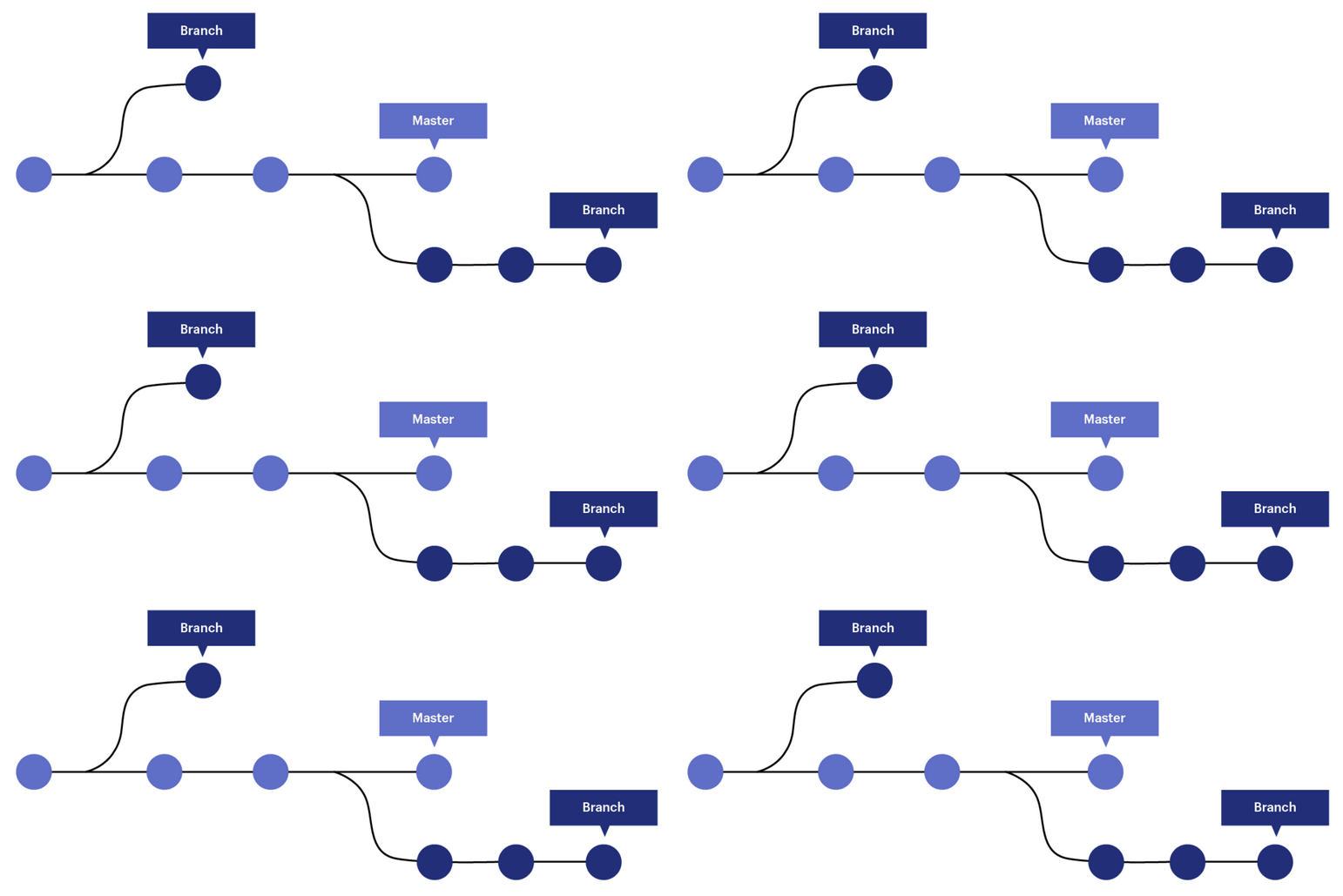
Git can be compared to a tree:
- The trunk of the tree is the main branch of the project (most of the time: **main** or **master**)
- The branches are elements that come from the trunk but go in different directions
- The leaves are one on top of the other, more or less numerous and fall or remain on the branches like **commits**.
- Conclusion: in winter there are more commits
- The `git branch` command allows you to list the branches of the repository:
```sh title="git branch" {2}
list
* master
```
- Here there are two branches: **list** and **master** now **main**.
The `*` indicates that I am currently in the master branch.
The `-d` option deletes a branch (`git branch -d mybranch`)
The `-b` option creates a new branch (`git checkout -b mybranch`)
- The `git checkout mybranch` command allows you to change branches:
```sh title="git checkout mybranch"
Switched to branch 'mybranch'
```
- It is possible to create a branch from a commit with one of the following commands:
```sh
git checkout -b mynewbranch
```
Note that `git checkout ` also allows you to return to a commit.
- To get the `sha` (hash) of the commit, we can use the command:
```sh title="git log --oneline --graph"
* 5aaf865 Deletion of README
* 6746dbc Adding test text
* 931dc0f Creation of README
```
The `sha` is made up of the hexadecimal characters after the **"*"** **931dc0f**, for example.
## Git stash
- The `git stash` command allows you to put a commit aside so that the current branch becomes clean, therefore without data in the stage area. This situation is suitable when a commit has not been made and the modifications are still in the stage.
- In practice, the `git status` command returns that there are several changes (in the stage area) that have not been committed.
- `Stash` allows you to put them aside, to be able to insert them into another branch, which can be useful when you have made a mistake in the branch!
- After executing the `git stash` command if you run the `git status` command again, it returns that the working directory is clean (stage empty).
- Now I can go to a new branch or an existing one before inserting the changes made:
```sh
git branch mynewbranch
```
```sh
git checkout mynewbranch
```
```sh title="git branch"
* mynewbranch
master
```
```sh
git stash apply
```
## Git reset
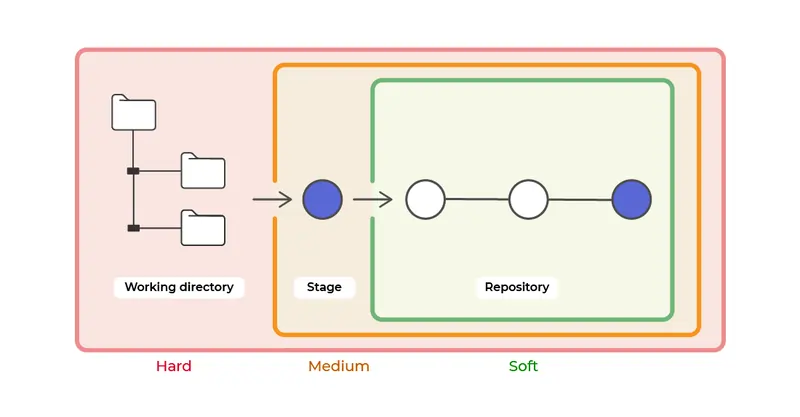
- **Git reset** allows you to undo changes in three different ways: `soft`, `mixed` and `hard`
### Delete the last commit
- First, look at the logs and therefore the last commit made and its identifier:
```sh title="git log --format=fuller -1" {1}
ca83a6dff817ec66f443420071545390a954664949 Author: contact
Date: Mon Mar 19 21:52:11 2022 -0700
```
- Note the identifier: `ca83a6dff817ec66f443420071545390a954664949` if you need to assign it to another branch after deleting it.
- Now I can delete the last commit with the command:
```sh
git reset --hard HEAD^
```
## Github authentication
Github relies on authentication with SSH, therefore a pair of keys.
```sh title="ssh-keygen -t ed25519"
Generating public/private ed25519 key pair.
Enter file in which to save the key (/home/contact/.ssh/id_ed25519):
Created directory '/home/contact/.ssh'.
Enter passphrase (empty for no passphrase):
Enter same passphrase again:
Your identification has been saved in /home/contact/.ssh/id_ed25519
Your public key has been saved in /home/contact/.ssh/id_ed25519.pub
The key fingerprint is:
SHA256:myhash contact@mydomain
The key's randomart image is:
+--[ED25519 256]--+
|%@+. |
|EBCVB. |
|+=Bo. |
|+.o* . |
|oo..o . S S |
|=+oo o |
|B++ o . . |
|+=.. o . |
|o. . . |
+----[SHA256]-----+
```
`ed25519` is the **current recommended standard in terms of security**, **RSA** is compatible with more systems (but **less secure** (-4096 minimum)).
```sh title="cat ~/.ssh/id_ed25519.pub"
ssh-ed25519 AAAAC3NzaC1lZDI1NTE5AAAAKC91uWop9DhfNh23i6u0yUlhEkGv0IOQKzhU5ltKBkAG contact@contactit.fr
```
Go to `Settings > SSH and GPG keys`, in the **title** section put any name and in the **key** section paste your public key, then **validate** with `Add SSH key`.
## Summary of Git/Github