# Active Directory multi-sites, network shares and user rights management
> Active directory, installation, domain controller, shares and permissions.
Published on 2021-12-20 | Tags: windows server, AD, share, permissions, DC
https://xsec.fr/en/windows/ad-tp/
---
import Callout from '@shared/components/Callout.astro'
import { Collapsible } from '@shared/components/ui/collapsible'
import { Tree } from '@shared/components/ui/file-tree'
import AdMultiSiteTopology from '@shared/components/diagrams/AdMultiSiteTopology.astro'
## Context
A company has 3 sites, each with 1 Windows server:
- SRV-CHA (AD) in Chassignieu (company headquarters)
- SRV-VIR in Virieu
- SRV-BLA in Blandin
Each site contains 2 departments:
- Administrative
- Technical
And the headquarters contains 3:
- Management
- Administrative
- Technical
### Organization Units (OU) Structure
The `GG (Global Groups)` link users to LGs.
They group all users from the same department.
Each user belongs to their department's GG.
### Shares and Permissions
We will use the above topology for this entire practical work.
The steps detailed below indicate the procedure to follow to create each element.
## Creating an OU
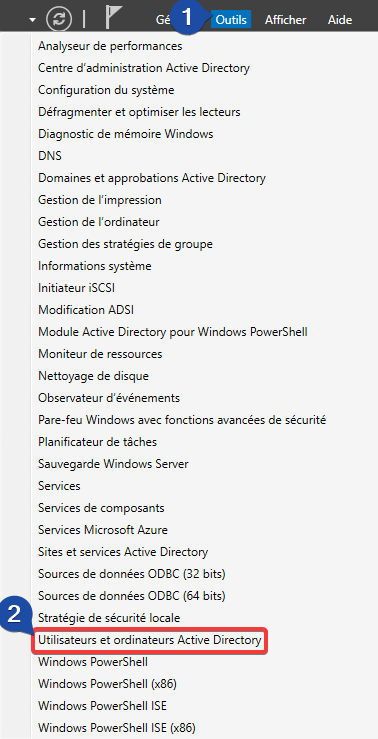
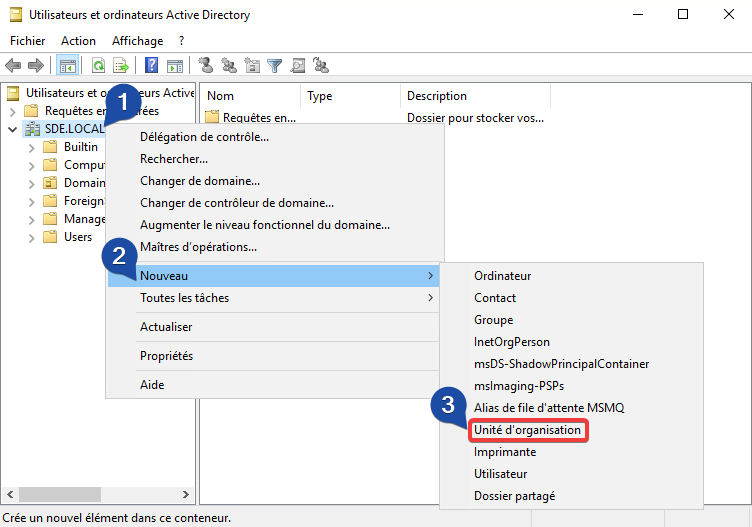
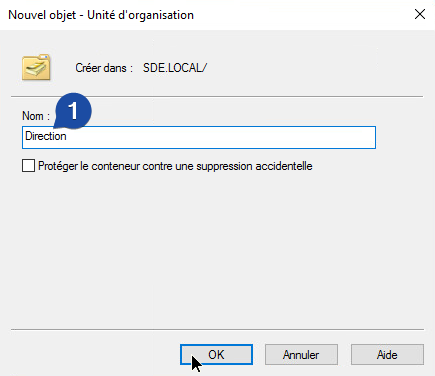
`OU` Organizational Unit is an element in Active Directory that allows us to manage a set of elements.
In the diagram above, we can see there are "sub-Organizational Units":
For example: The user: CEO is located in `SRV-CHA > Management`
So in the sub-OU `Management` which depends on `SRV-CHA`
- Go to server `SRV-CHA` (active directory):
## Creating a GG
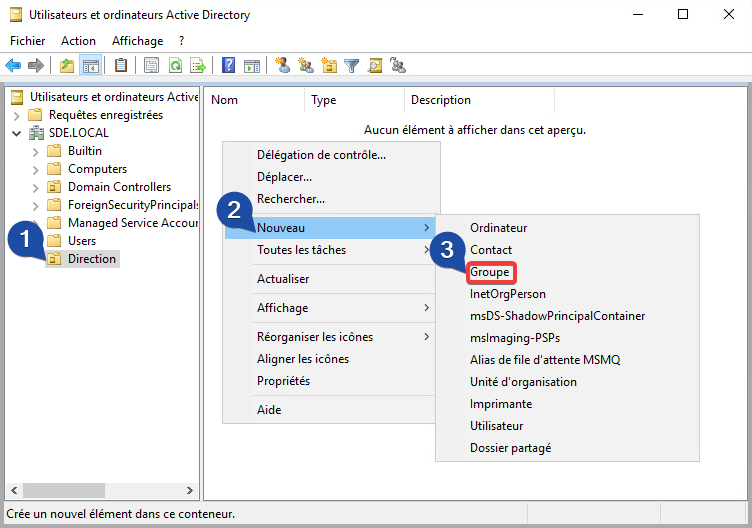
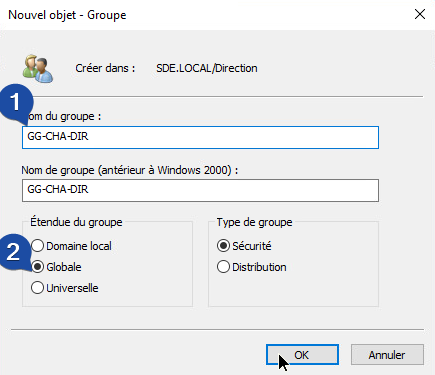
A `Global Group` allows grouping one or more users.
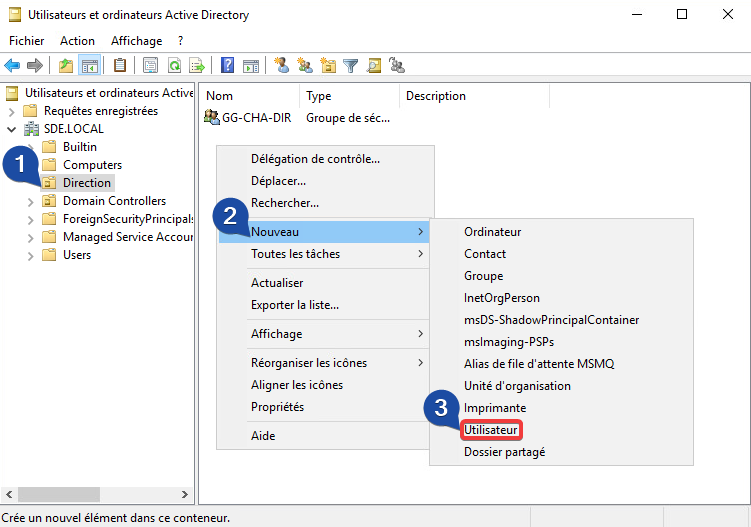
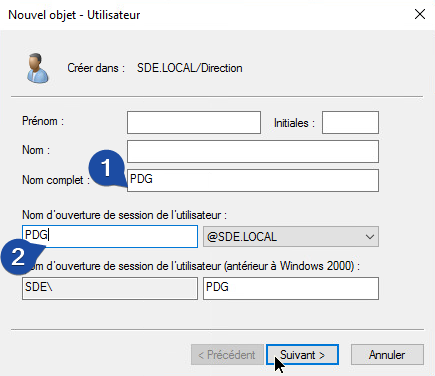
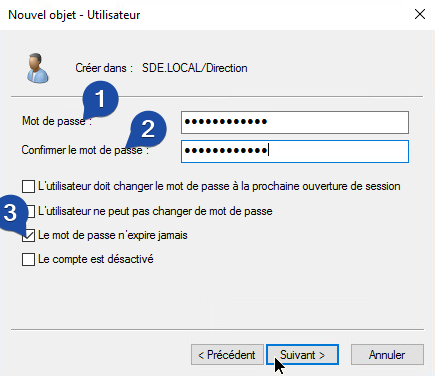
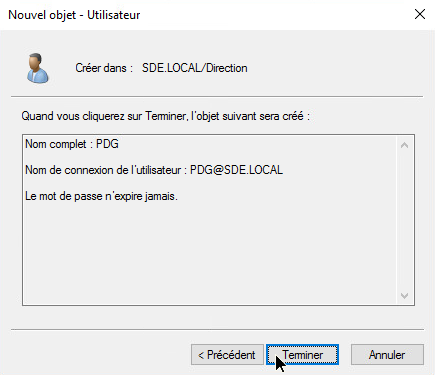
## Creating a User
## Creating an LG
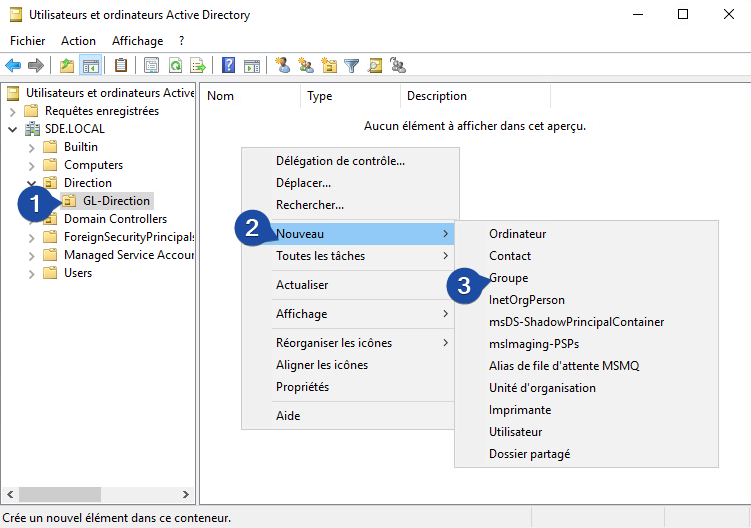
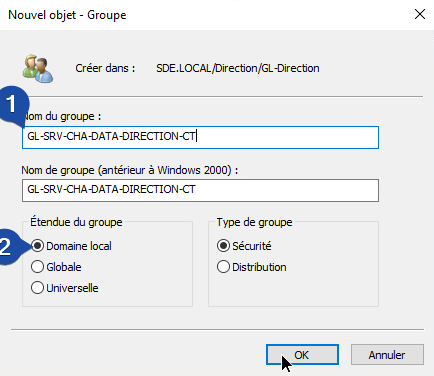
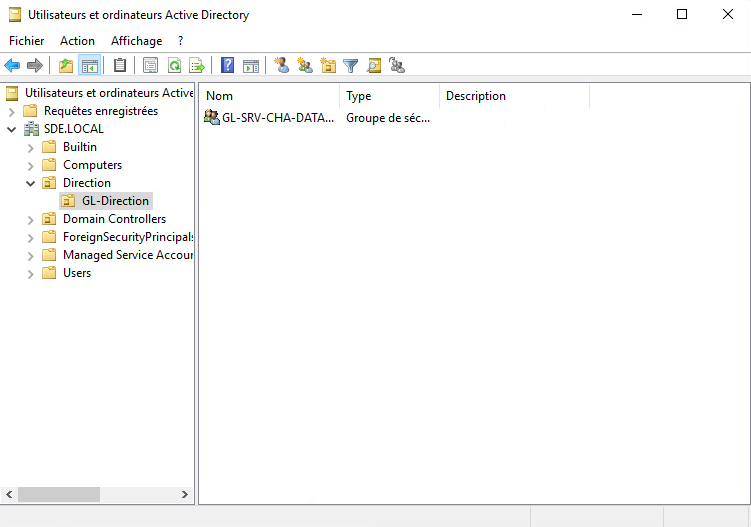
`LG (Local Domain Groups)` apply rights to resources.
`FC` Full Control
`R` Read
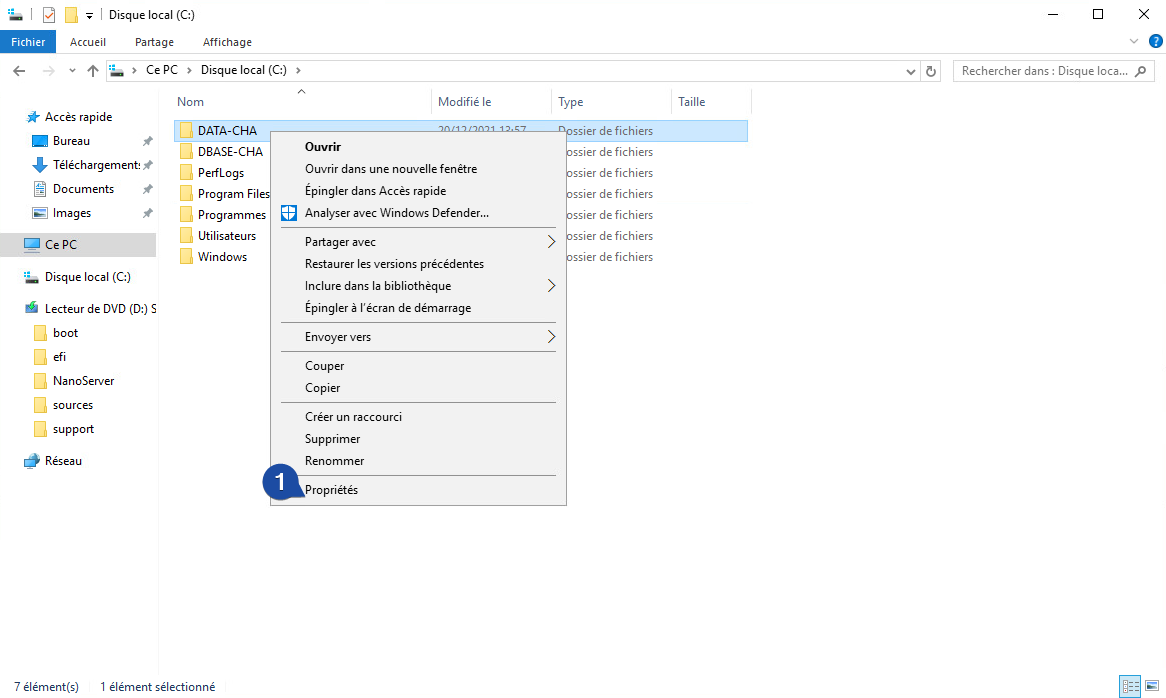
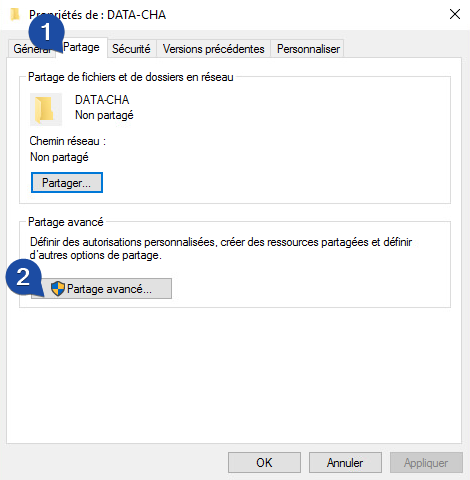
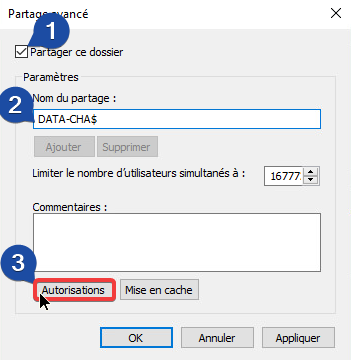
## Creating the "DATA" shared folder
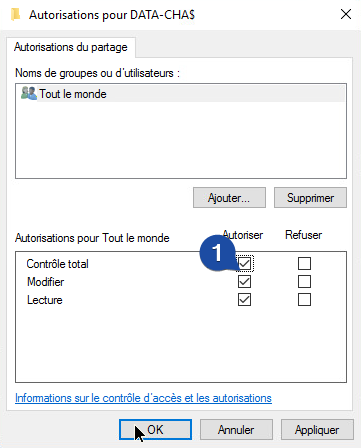
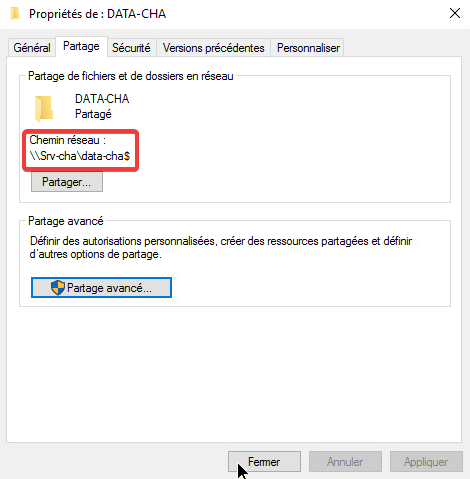

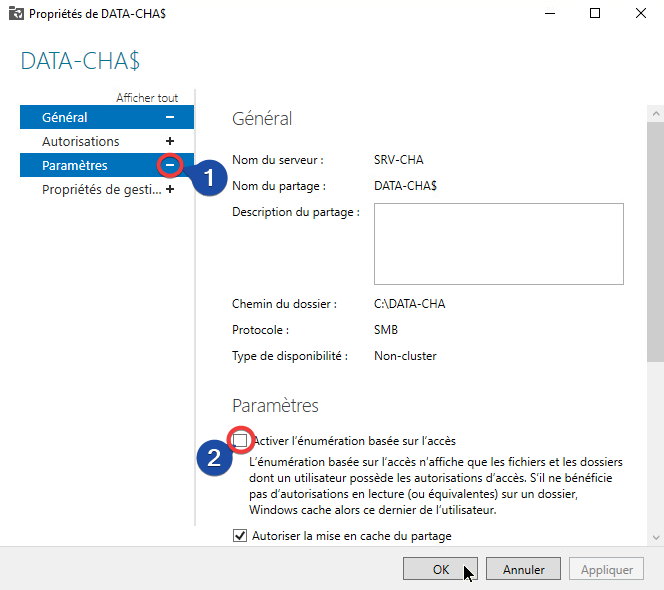
### Enable Access-based Enumeration
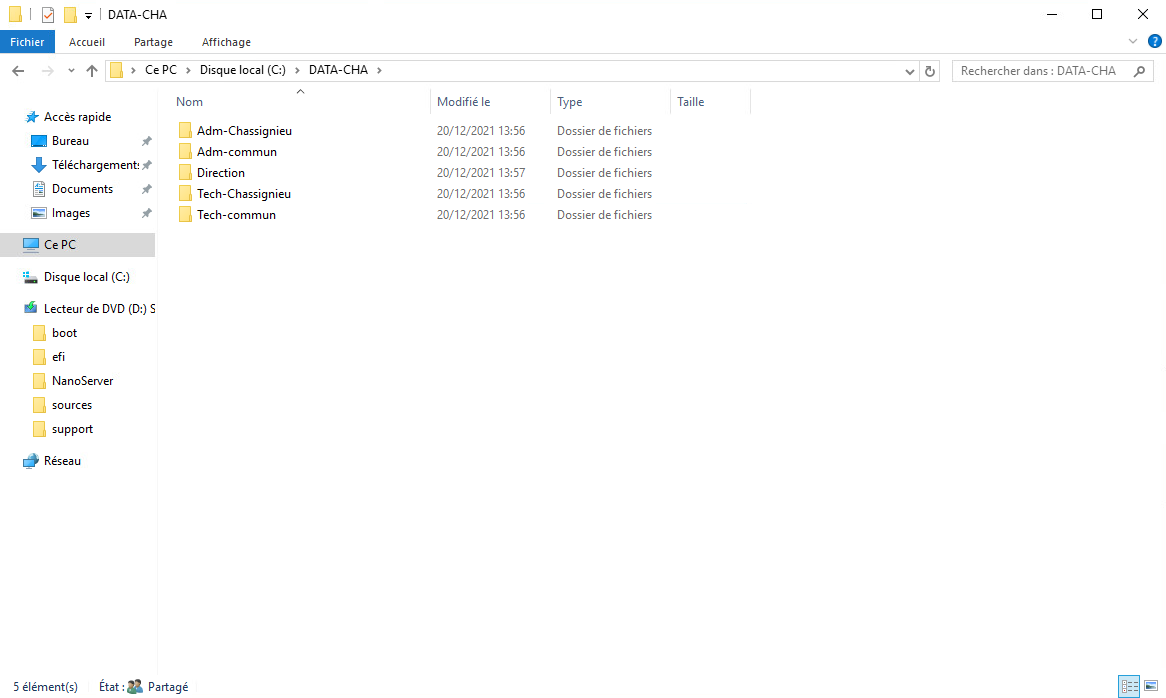
Enabling enumeration shows only the folders that the user has access to.
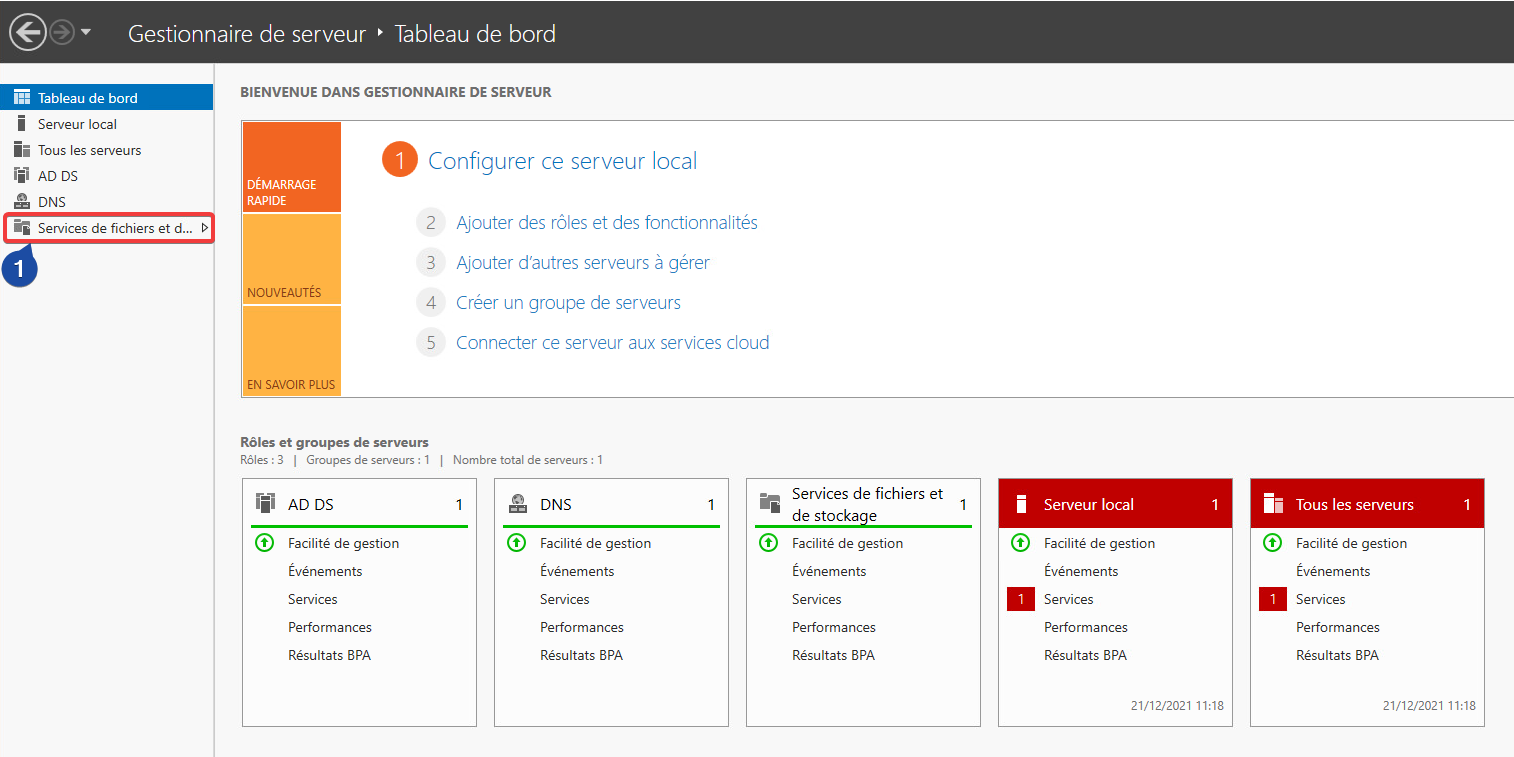
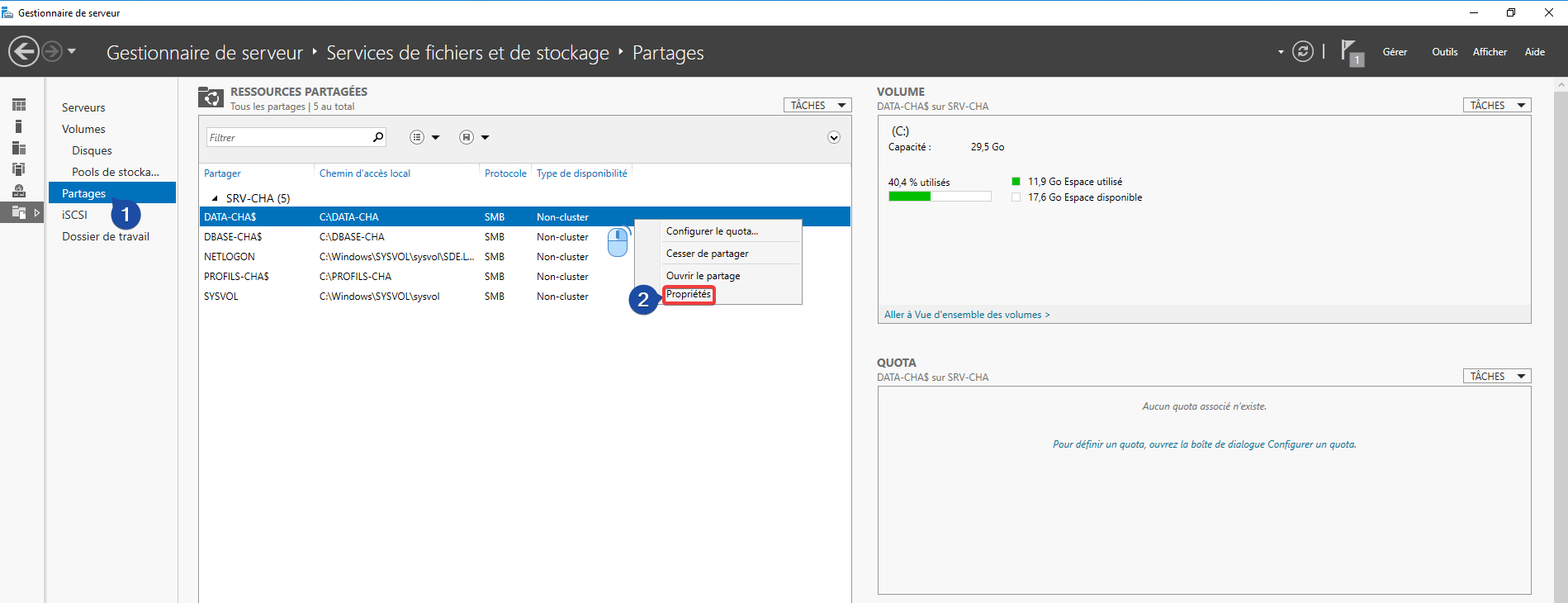
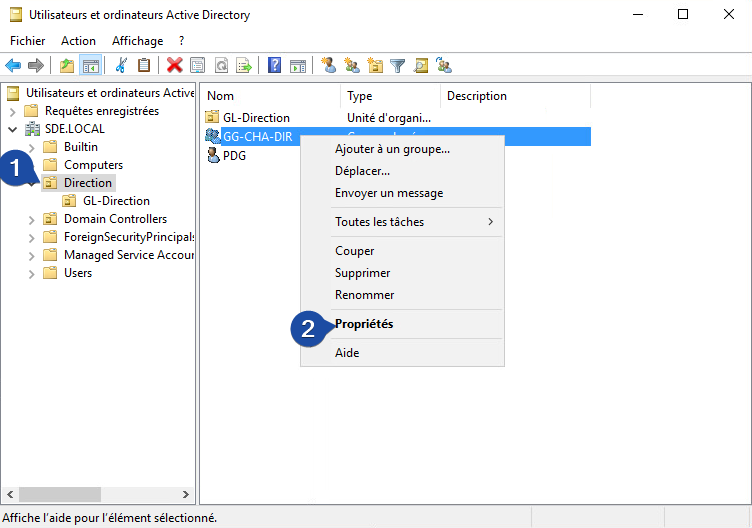
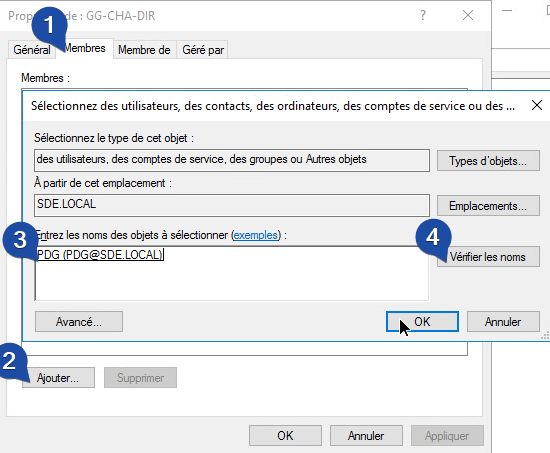
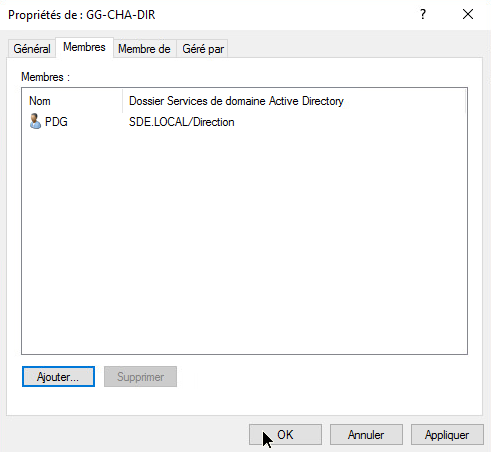
### Linking a User to GG
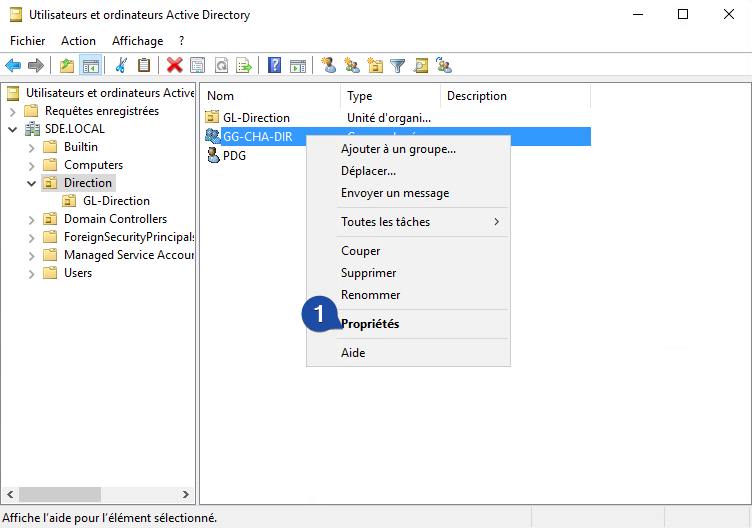
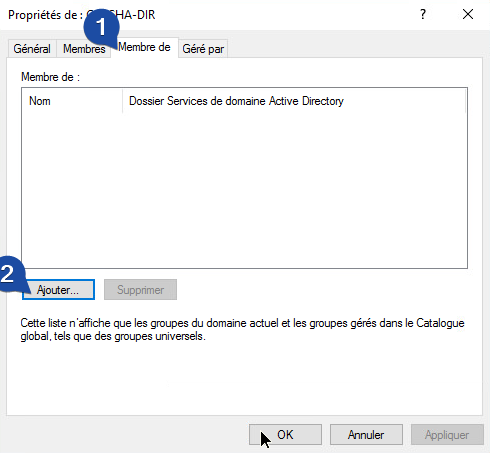
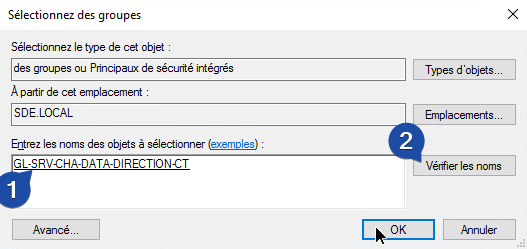
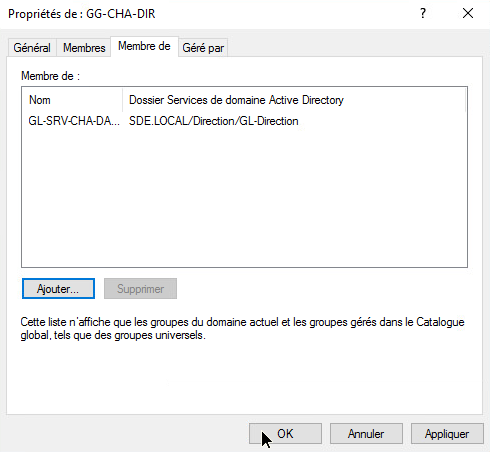
### Linking a GG to LG
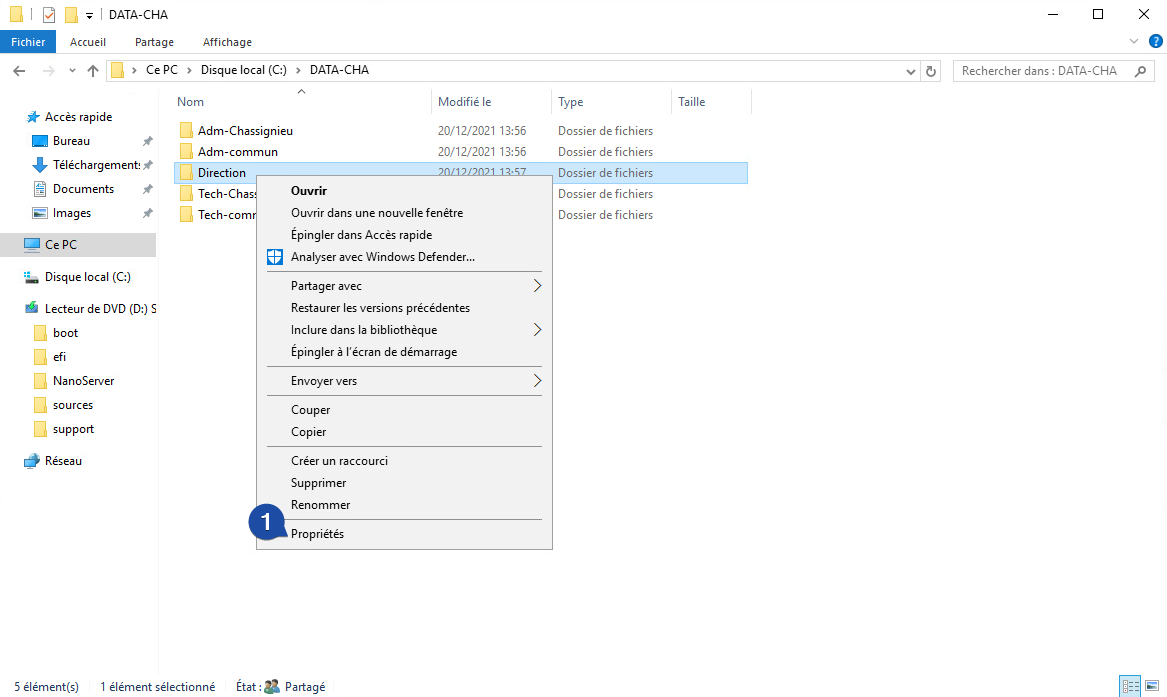
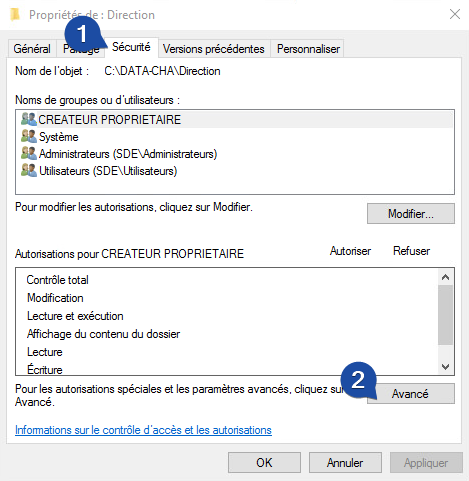
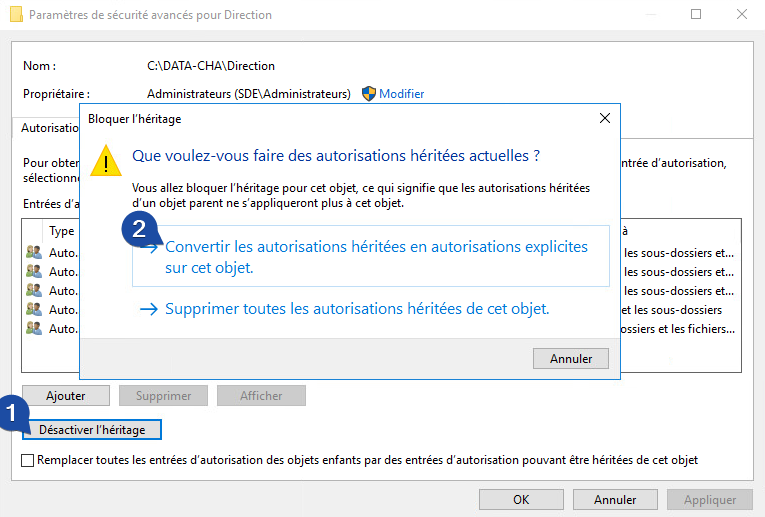
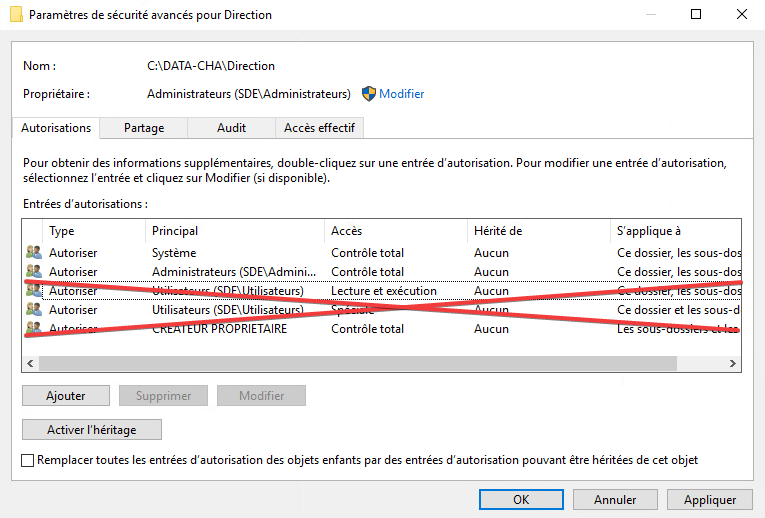
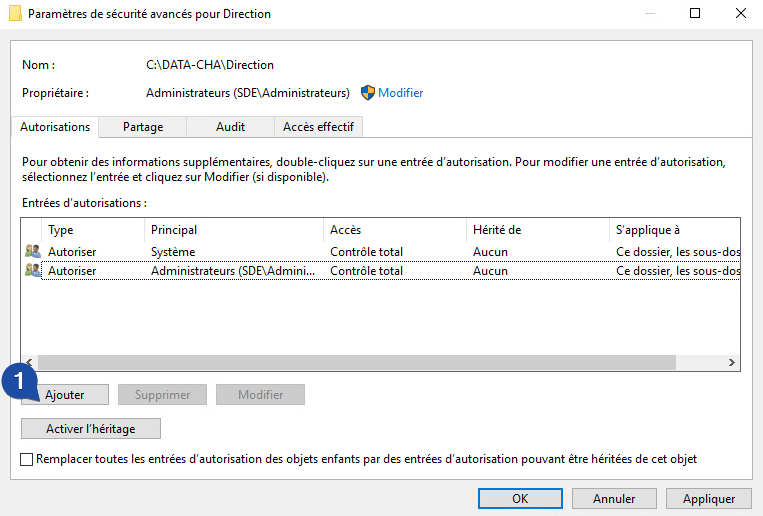
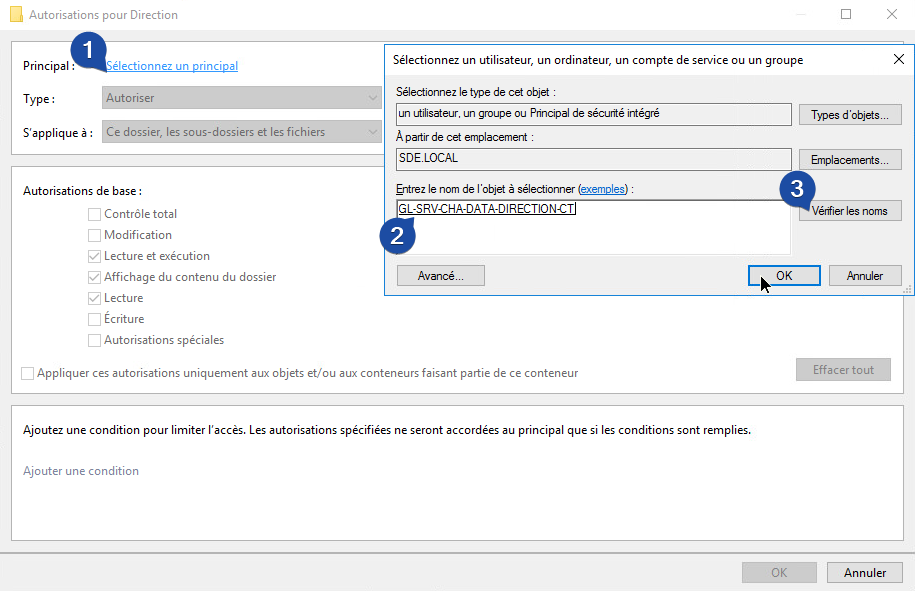
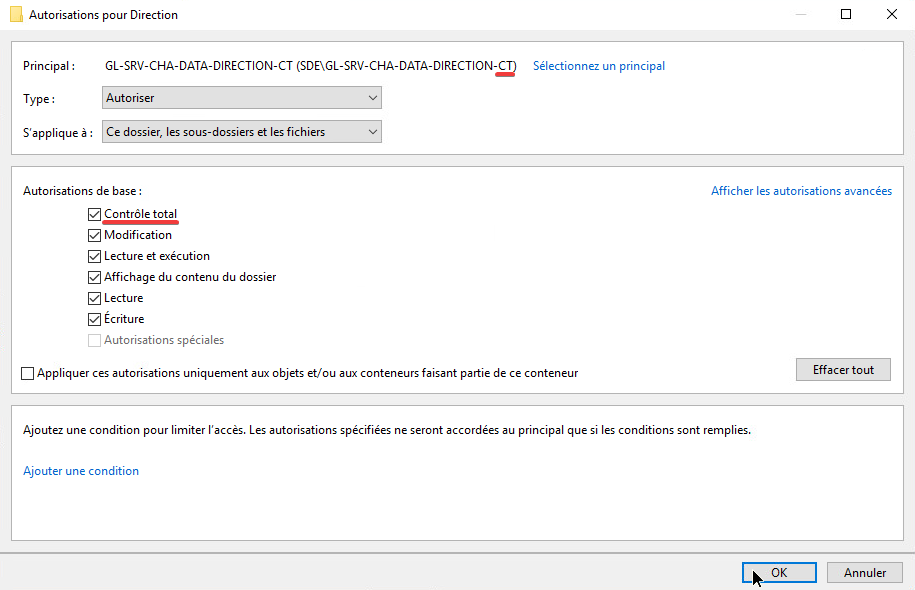
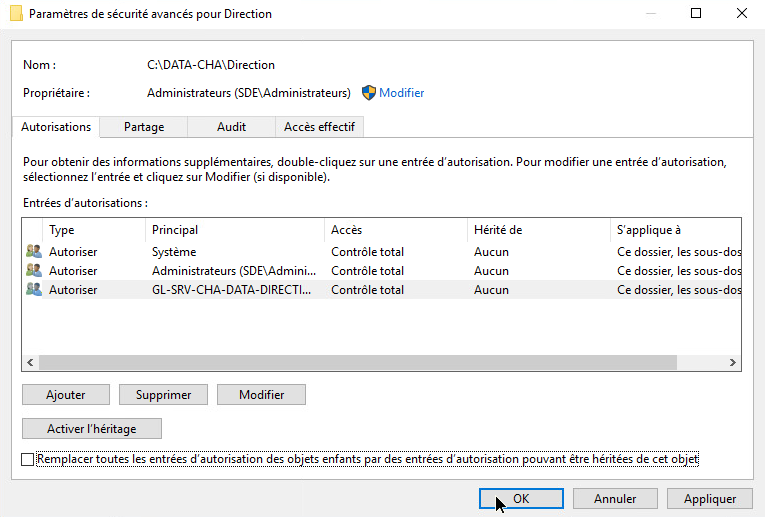
### Applying an LG to Shared Directory
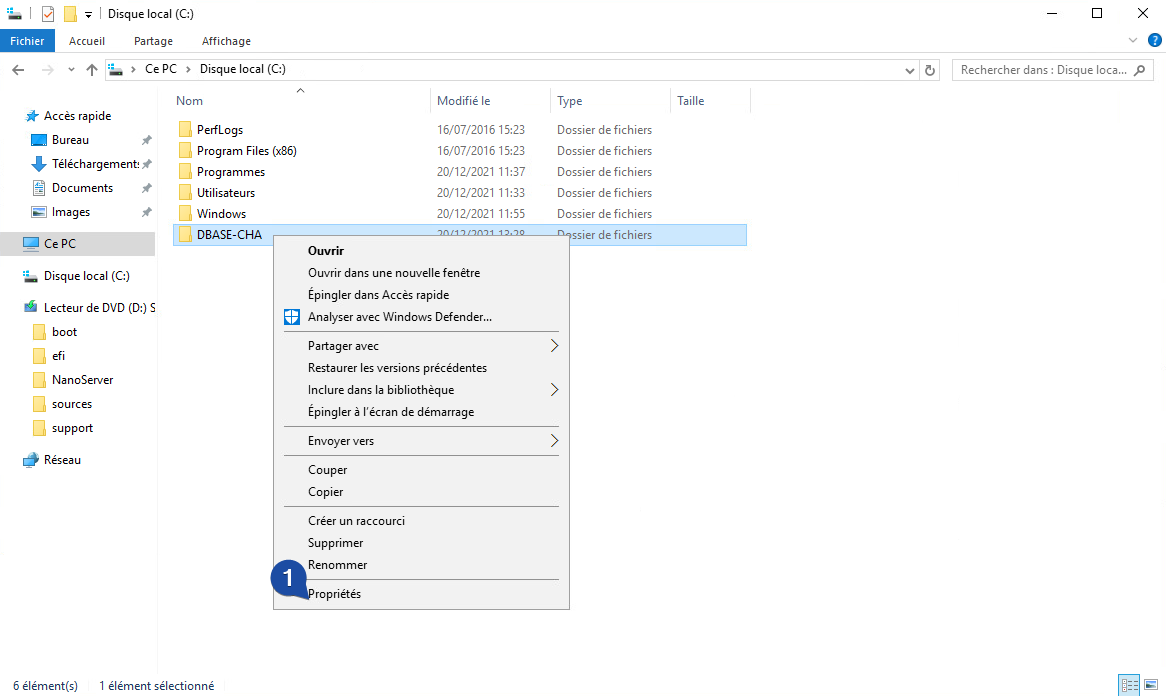
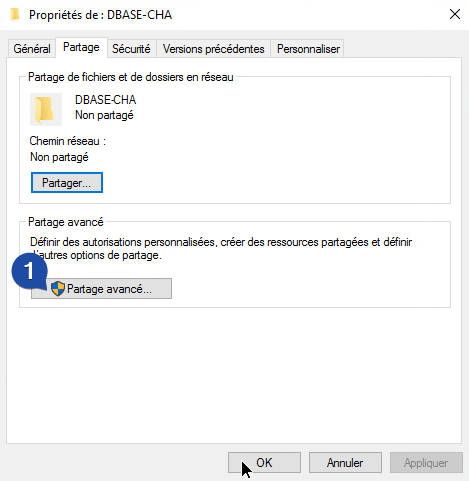
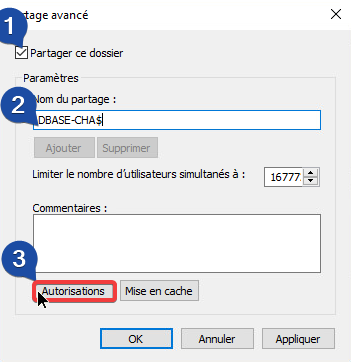
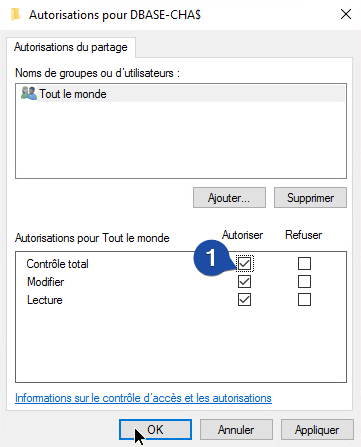
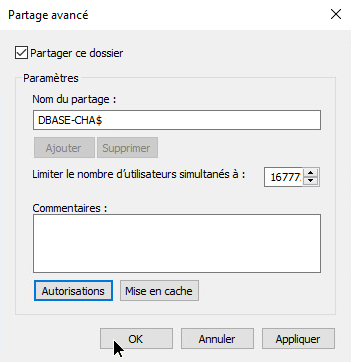
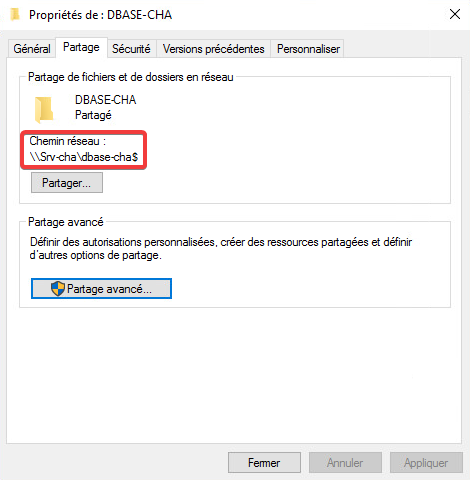
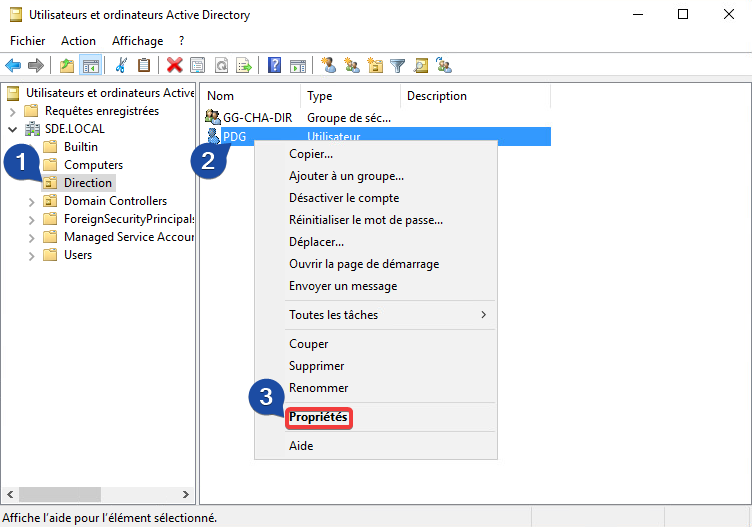
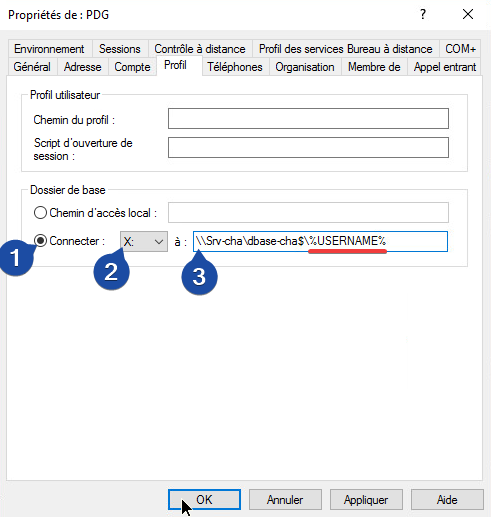
## Base Folder
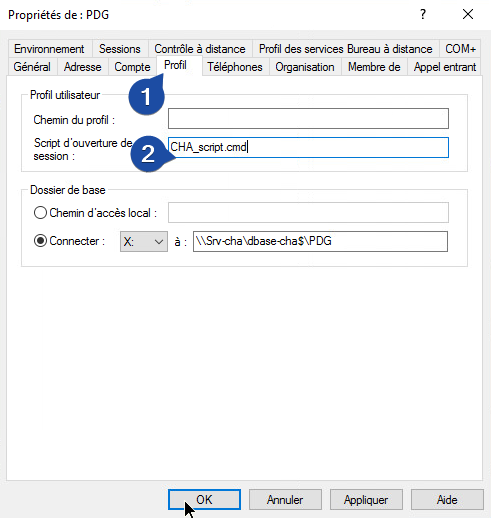
The base folder is simply an empty directory for each user, where they can store their documents for example.
This folder is in a shared path.
## Mapping Network Drives
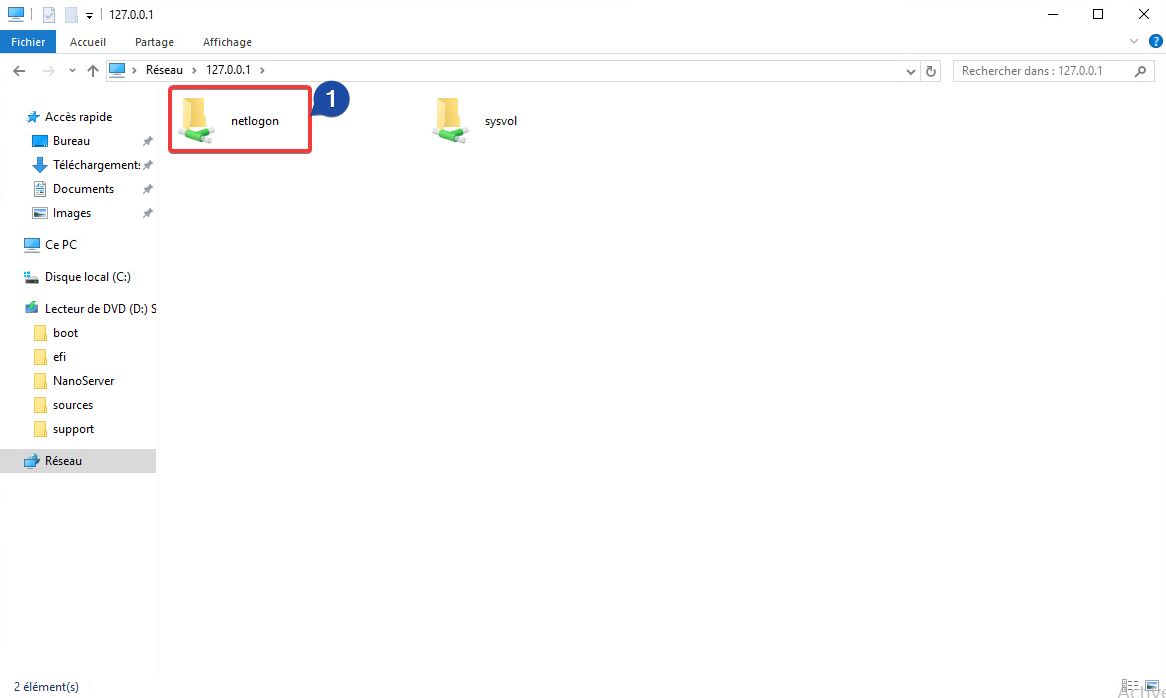
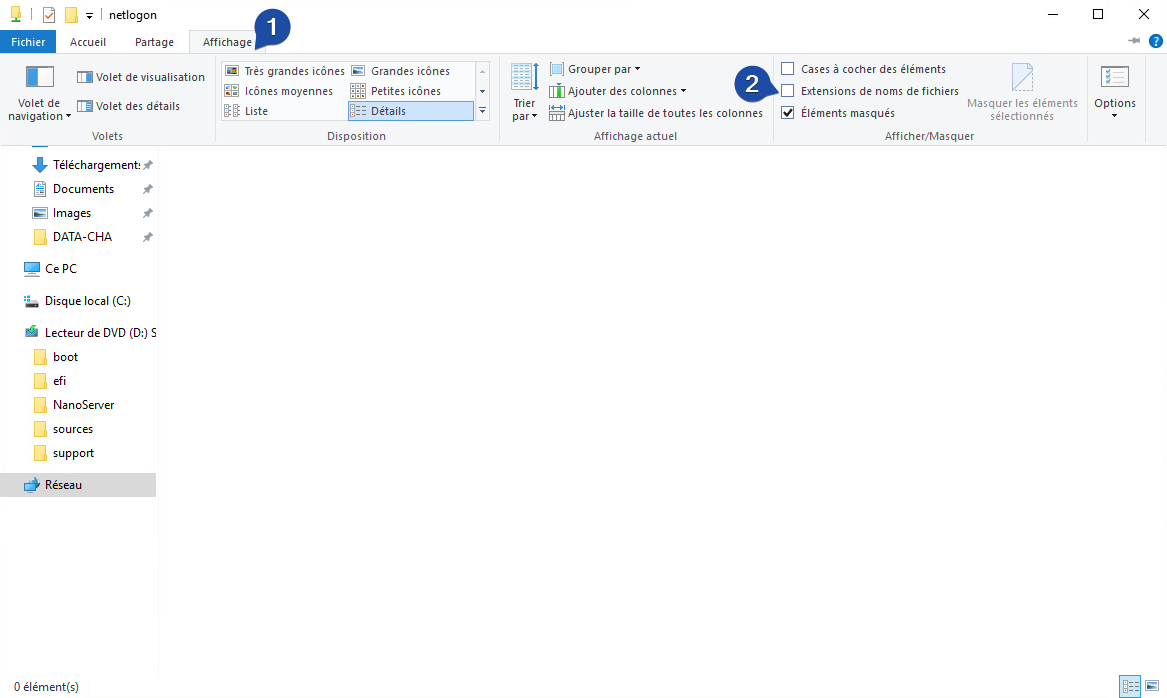
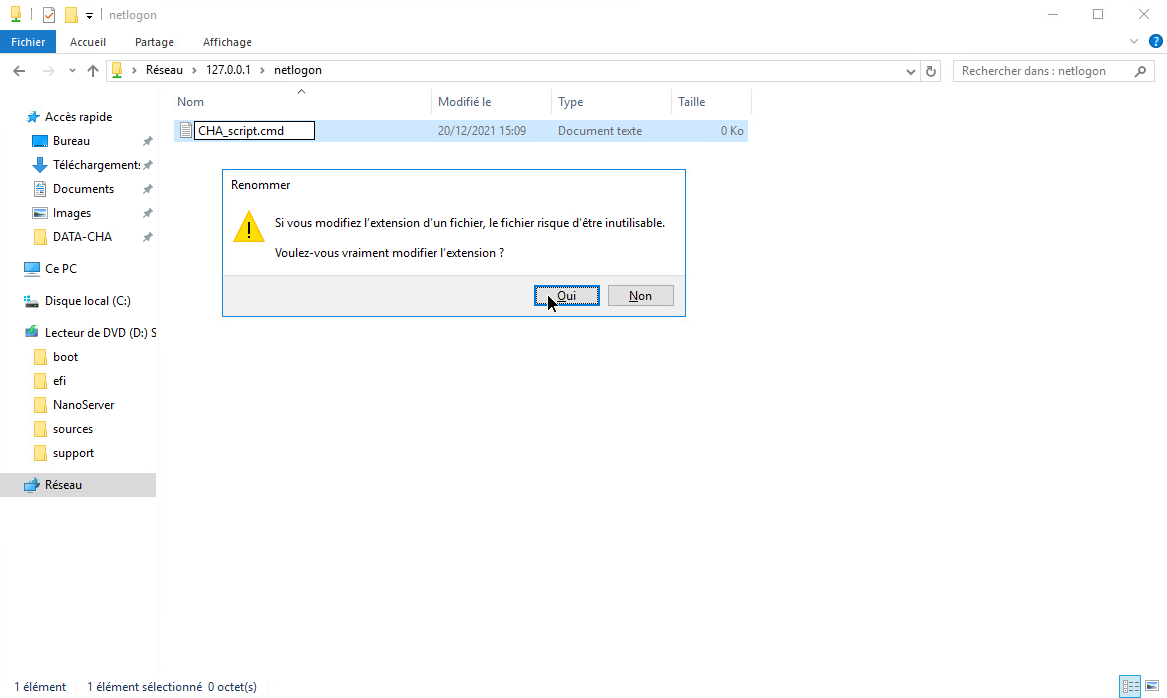
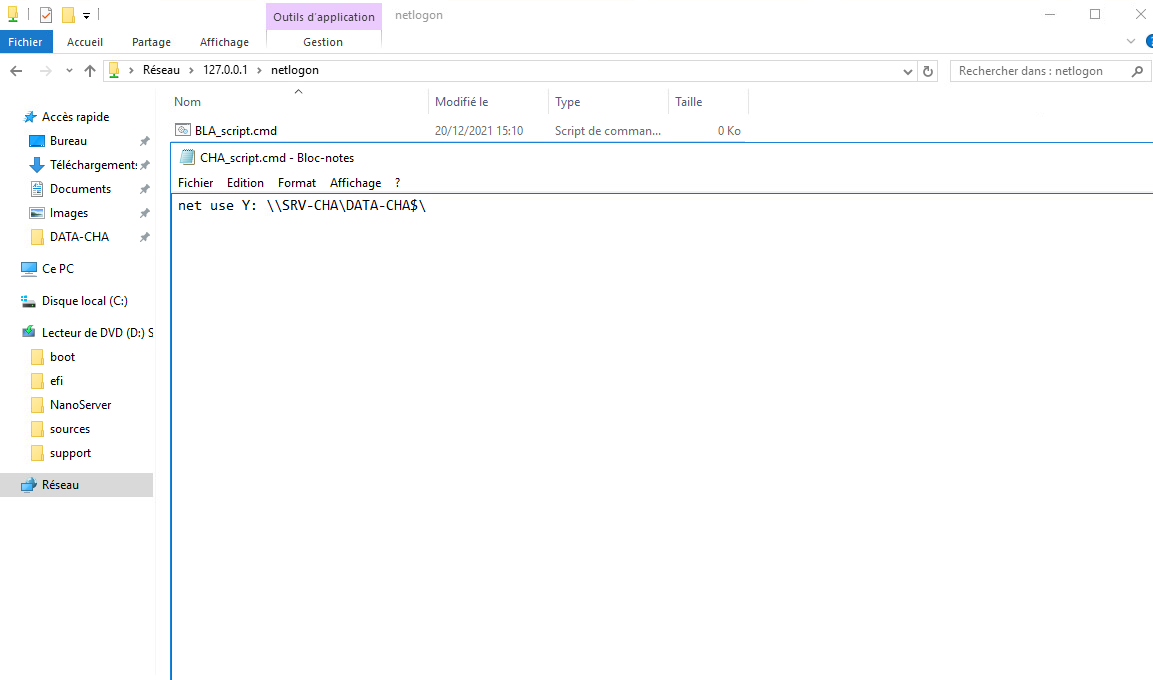
Each user will automatically map 3 network drives to their session (common, partitioned, and base folder, depending on their location), using the script assigned to them:
```bat
net use Y: \\SRV-CHA\DATA-CHA$
```
Contains only 2 since both `Common` and `Partitioned` folders are in `DATA-CHA`
```bat
net use Y: \\SRV-CHA\DATA-CHA$
net use Z: \\SRV-VIR\DATA-VIR$
```
```bat
net use Y: \\SRV-CHA\DATA-CHA$
net use Z: \\SRV-BLA\DATA-BLA$
```
Example: Let's take the example of a user in Blandin:
- `X:` will contain the shared directory `\\SRV-BLA\DBASE-BLA$\USER_NAME`
- `Y:` will contain the common shared directory `\\SRV-CHA\DATA-CHA$` (user will only see folders where they have access (minimum read) from the common share).
- `Z:` will contain the shared directory `\\SRV-BLA\DATA-BLA$` if I'm in Blandin (user will only see folders where they have access (minimum read), site partitioning).
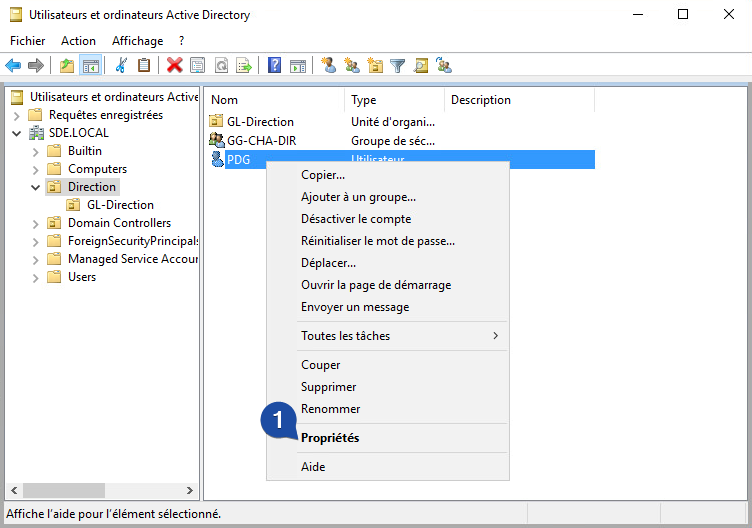
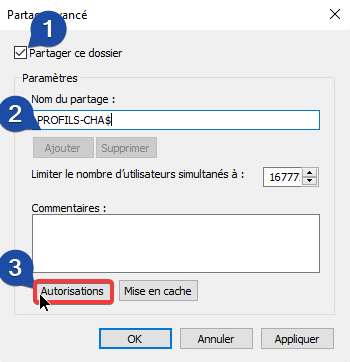
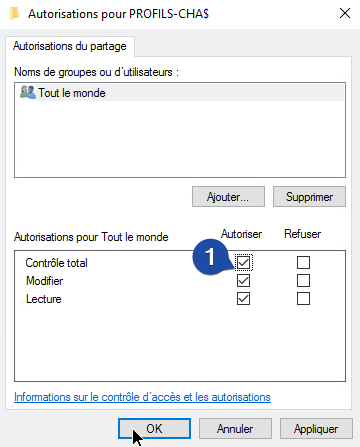
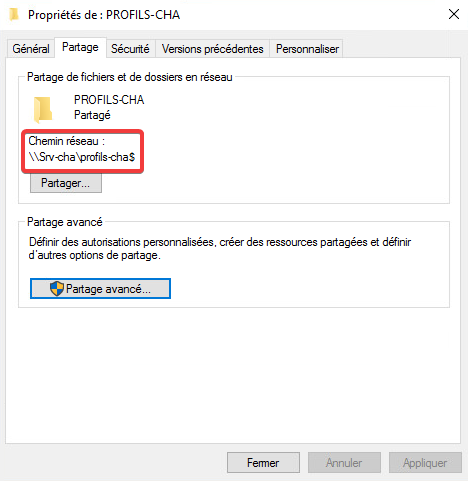
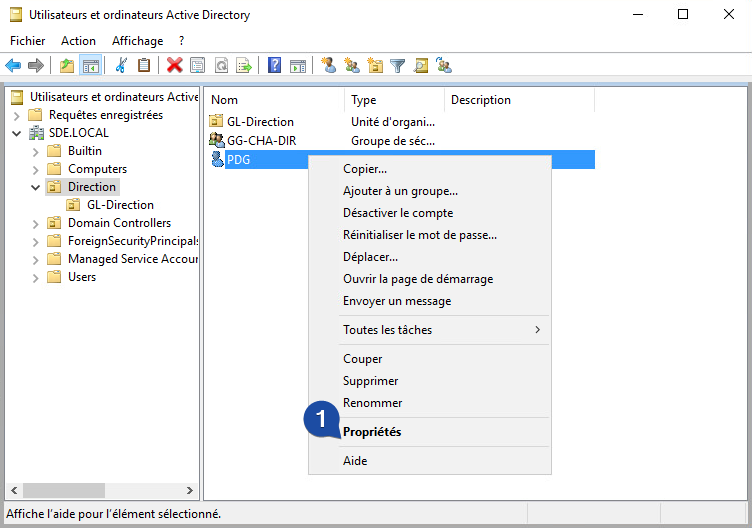
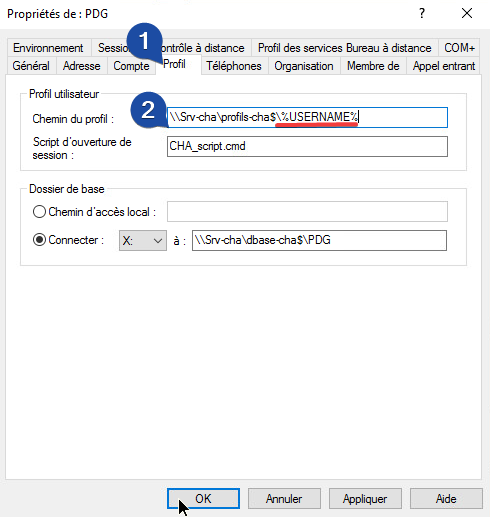
## Roaming Profiles
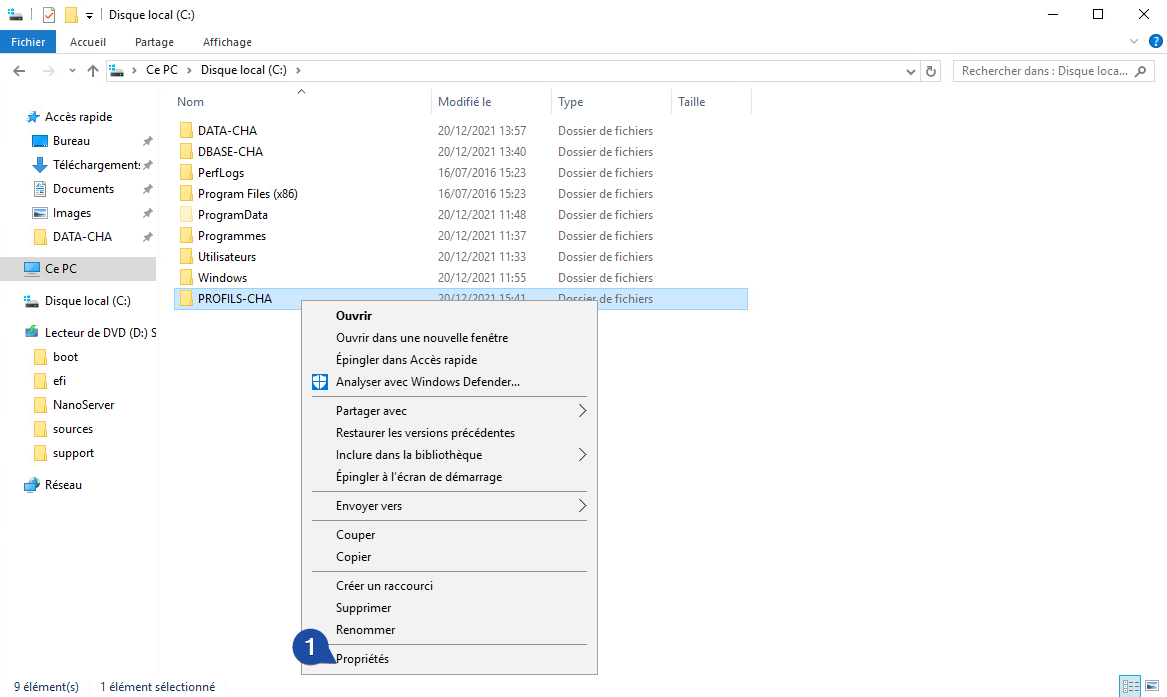
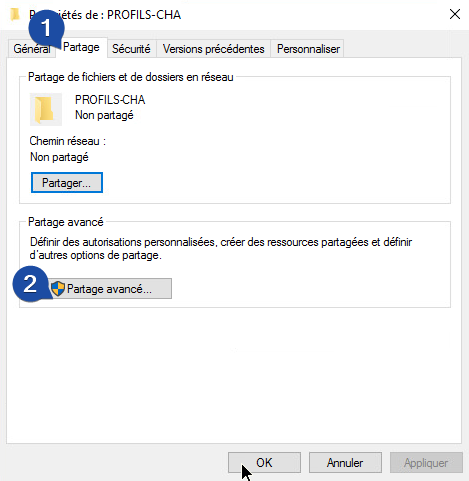
Roaming Profiles facilitate machine or location changes.
The user profile is stored remotely on a shared directory.
## Testing a Domain User
You must be a local administrator of the machine to join the domain.