Exegol Cheat Sheet & Tips
Published on 5 min read
Updated on
The Exegol Cheat Sheet is a summary of relevant commands and concepts related to the Exegol project, as I see them.
Exegol relies on Docker containers. If images, containers, volumes, or Unix groups are not yet familiar, the Docker on Debian introduction supplies that prerequisite before the Exegol-specific commands.
Installation
Exegol relies on Docker; if it’s not installed on your system, install it using this command:
curl -fsSL "https://get.docker.com/" -o get-docker.sh && sh get-docker.sh-
Add the user to the Docker group
Allow the current user to use Docker and therefore Exegol without privilege elevation:
Terminal window sudo usermod -aG docker $(id -u -n) && newgrp docker -
Install Exegol with PIPX
The simplest and cleanest way to install the Python Exegol project (in stable main branch version):
Requires pipx; install it if needed:
sudo apt install pipxTerminal window pipx install exegol
-
Add autocompletion
Add this to your .bashrc or .zshrc:
~/.bashrc eval "$(register-python-argcomplete --no-defaults exegol)" -
Install an Exegol Docker image
Terminal window exegol install nightly
Upgrade exegol
pipx upgrade exegolOffline resources
Offline resources are stored in /opt/resources, which is shared between the host system and the Docker containers. This directory by default stores useful tools for Offensiveing, such as:
- winpeas
- linpeas
- …
The goal is to save time and facilitate transfer to a target.
Usage
- Install an image:
exegol install - Create/start/enter a container:
exegol start - Show info on containers and images:
exegol info - Stop a container:
exegol stop - Remove a container:
exegol remove - Uninstall an image:
exegol uninstall - Get help and advanced usage:
exegol --help - Help and examples can be obtained for each action directly from the wrapper with the following command:
exegol <action> -h(action: install/start/stop/etc.).
Install Exegol in beta version
The beta version (dev branch) of Exegol offers several features, including the much-anticipated remote desktop (via web) on a container. If you already have Exegol installed:
-
Uninstall the standard version:
Terminal window pipx uninstall exegol -
It is necessary to install Exegol from the GitHub repository:
Terminal window git clone "https://github.com/ThePorgs/Exegol" -
Install the Python dependencies:
Terminal window python3 -m pip install --user --requirement "Exegol/requirements.txt" --break-system-packagesHere the
--break-system-packagesoption ignores PEP668. -
Add Exegol to the PATH:
sudo ln -s "$(pwd)/Exegol/exegol.py" "/usr/local/bin/exegol"-
Update to the beta or dev branch:
Terminal window exegol update -v -
You will be asked to choose the version of your branch in the Git repo; choose dev.
-
You will then need to update the project’s Python dependencies (the command will appear in your terminal).
Launch a container with remote desktop via web access
exegol start test nightly --desktopFix Evil-WinRM (Deprecated, fixed)
Exegol has an issue with OpenSSL implementation when running Evil-WinRM. To fix this, we need to modify the openssl.cnf file (find [openssl_init] and replace it with the configuration below):
[openssl_init]providers = provider_sect
# List of providers to load[provider_sect]default = default_sectlegacy = legacy_sect
[default_sect]activate = 1[legacy_sect]activate = 1
Tips
Since I mainly use Firefox and it is the default browser in the containers, I sometimes accidentally download something on my host instead of in the container. Since I use Hyprland, window titles no longer appear. To solve this, I haven’t brought back the titles, but I’ve configured Exegol to install a Firefox theme in each container. This way, the two windows are easily distinguishable as shown in the image below.
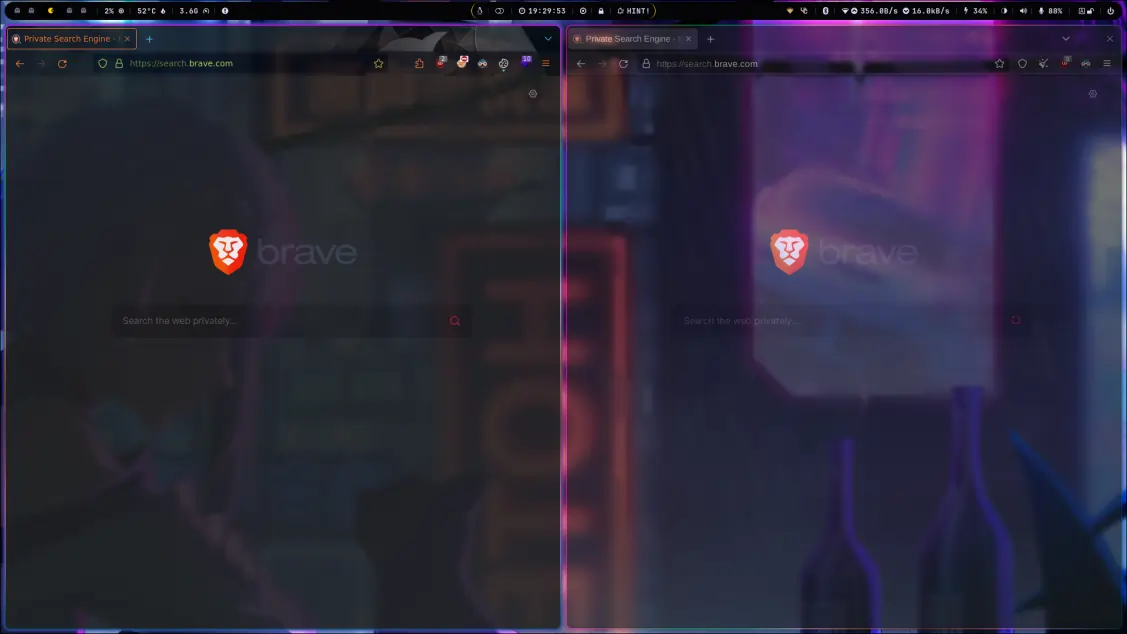
I also added uBlock Origin to all containers to block ads (cookie prompts, ads, trackers…) by editing the following file:
# This file can be used to install addons on the Firefox instance of Exegol.# The download links of the addons to be installed can be listed in this file (ie: https://addons.mozilla.org/fr/firefox/addon/foxyproxy-standard/).# All addons listed below will be downloaded and installed automatically when creating a new Exegol container.https://addons.mozilla.org/fr/firefox/addon/ublock-origin/https://addons.mozilla.org/fr/firefox/addon/rainbow-sparkle-animated-theme/A few changes in the history:
burpsuite &> /dev/null &python3 -m http.server 80And some personal aliases:
alias http='python3 -m http.server 80'alias tun0='ip a sh dev tun0 | grep -oP "(?:[0-9]{1,3}\.){3}[0-9]{1,3}" | tr -d "\n" | xclip -sel c; tun0ip=$(xsel -ob); echo "\033[1;32m[+]\033[0m Successfully copied \033[1;32m$tun0ip\033[0m (tun0) to clipboard !"'Screenshots will come later for each step :)